
In this article, we will explain how to delete YouTube watch history. Whenever you watch any video on YouTube, its history is automatically saved in your YouTube account. If you want to remove your YouTube history for any reason, this guide will be very helpful for you.
The process of deleting YouTube watch history is very simple. Whether you want to clear your watch history on a mobile phone or a PC, you can follow the steps explained in this article carefully to delete your history without any difficulty.
How to Clear YouTube Watch History on PC
If you are a laptop or PC user and want to delete your YouTube Watch history on your computer, you need to follow a few simple steps as explained below.
Step 1. – First, open the Google Chrome browser on your computer. After that, visit the official website of https://www.youtube.com/. Once the YouTube homepage opens, click on the History option.

Step 2. – As soon as you click on History, you will see all your YouTube Watch history. Here you will find the option Clear all watch history. Click on it.
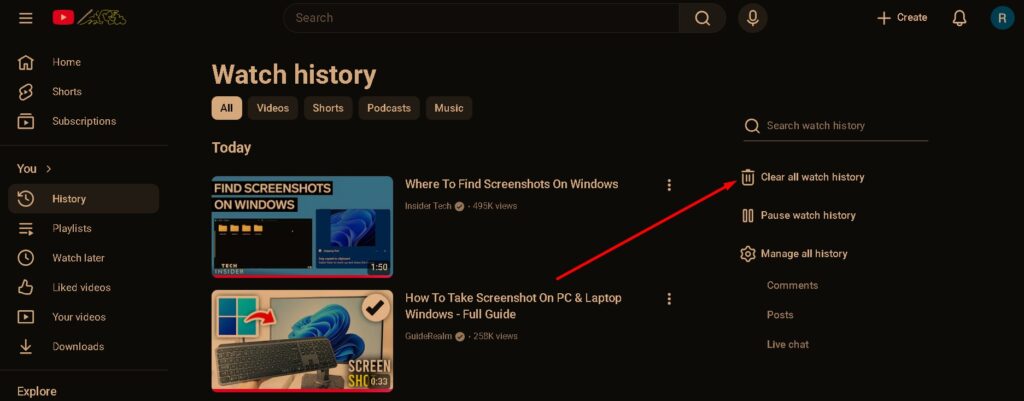
Step 3. – After that, a popup will appear on the screen. In this popup, click on the Clear watch history option.
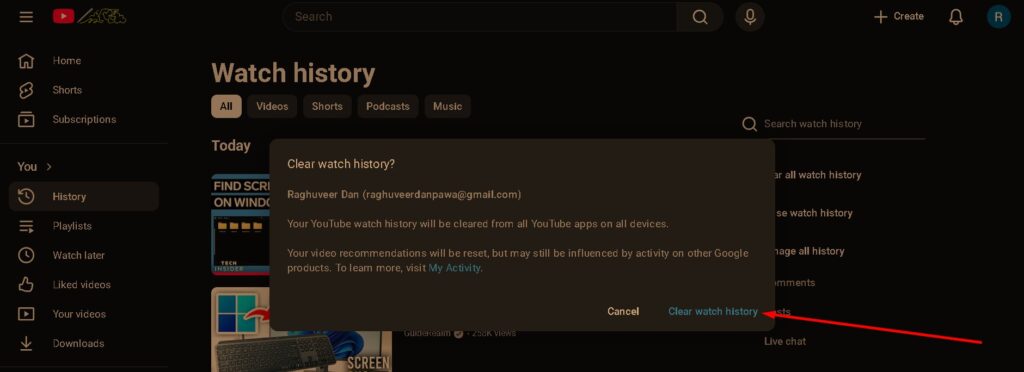
Once you complete this process, all your YouTube Watch history will be deleted at once. This is how you can easily delete YouTube Watch history on your computer.
How to Clear YouTube Watch History on Mobile
If you are a mobile user and want to delete your YouTube Watch history from your phone, you can do it by going to the YouTube application settings. For this, follow the steps given below.
Step 1. – First, open the official YouTube application on your phone. After that, click on your channel logo.

Step 2. – Now your channel page will appear. At the top, you will see the History option. Click on it.
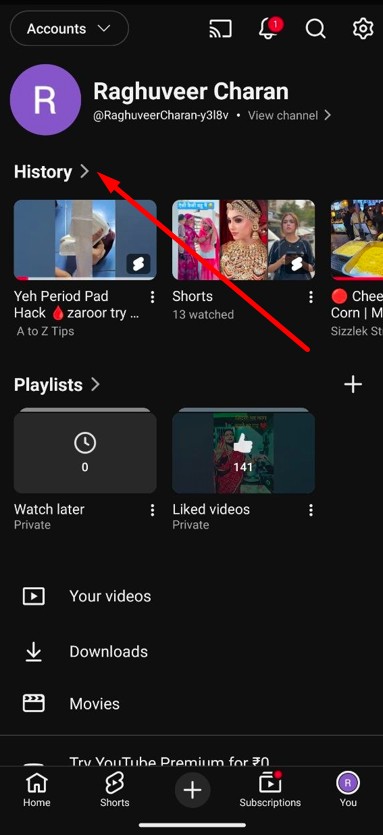
Step 3. – When you click on History, all the history related to your channel will open on the screen. At the top, you will see a three dots icon. Click on it.

Step 4. – After clicking on the three dots, a menu will open. In this menu, click on the option Clear all watch history.

Step 5. – After clicking on Clear all watch history, a popup will appear. Here you need to click on the option Clear watch history.
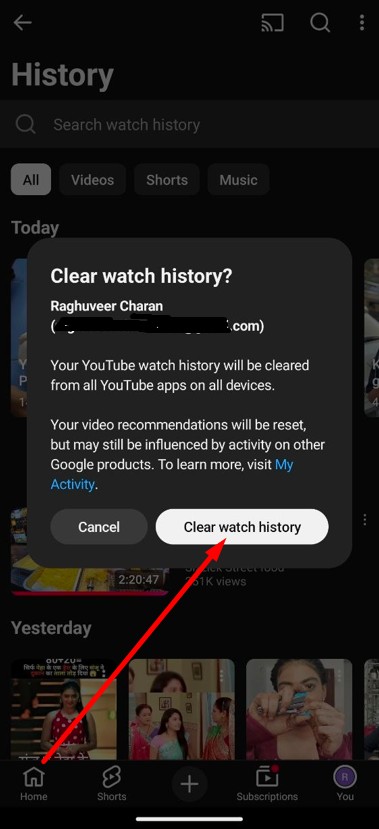
After completing this process, all the YouTube Watch history stored on your mobile device will be deleted at once. In this way, you can easily clear your YouTube Watch history from your phone.
Frequently Asked Questions
Can I delete all YouTube watch history at once?
Yes, you can delete all YouTube watch history at once by clicking on the “Clear all watch history” option in the History section.
Is it possible to clear YouTube watch history on mobile?
Yes, you can clear YouTube watch history on mobile by opening the YouTube app, going to History, and selecting the “Clear all watch history” option.
Where can I find the YouTube history option?
The History option is available in the YouTube menu on PC and at the top of the channel page inside the YouTube mobile application.
Will deleting YouTube watch history remove all saved history?
Yes, once you confirm the “Clear watch history” option, all the saved watch history in your YouTube account will be removed.