If you have an account on YouTube and you want to delete it, then this article is going to prove very useful for you. This is because, in this article, we are going to tell you the easiest and safest way to delete a YouTube account, by following which you will be able to delete your account very easily.
How to Delete YouTube Account
Often, users create their YouTube accounts for various reasons, but when they no longer need them, they want to delete their accounts. However, many times users are unable to delete their accounts due to a lack of correct information. If you want to delete your YouTube account, you will need to follow the process below:
Step 1: First of all, you need to go to the official website of YouTube. After this, log in to the account that you want to delete. Then, on the YouTube homepage, you will see your account Logo at the very top; click on it.
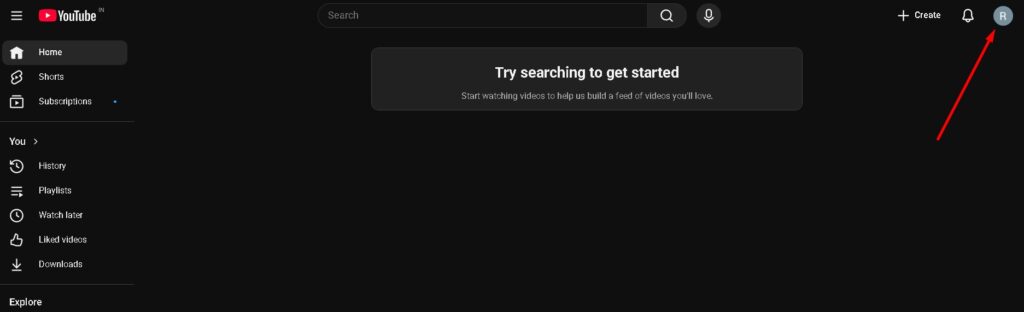
Step 2: When you click on the Logo, you will see a few different options. Among these, you need to click on Settings.
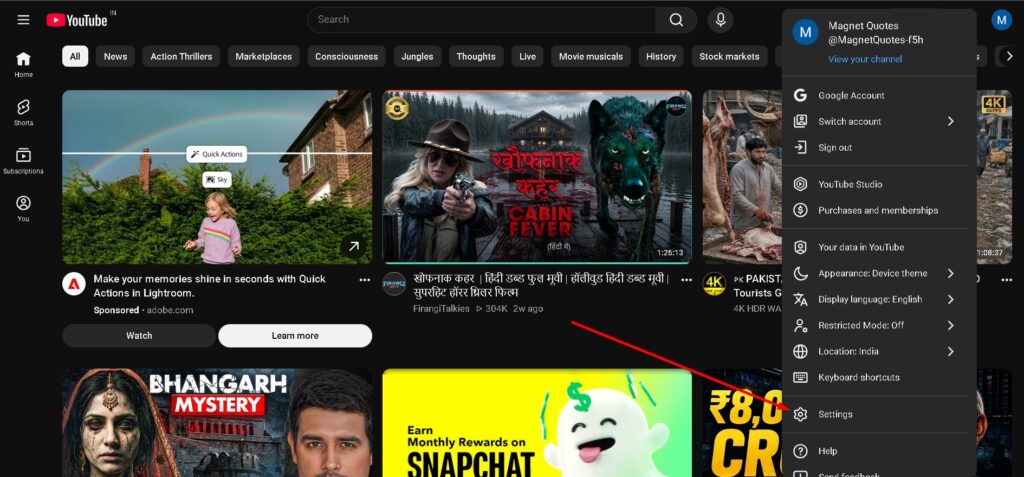
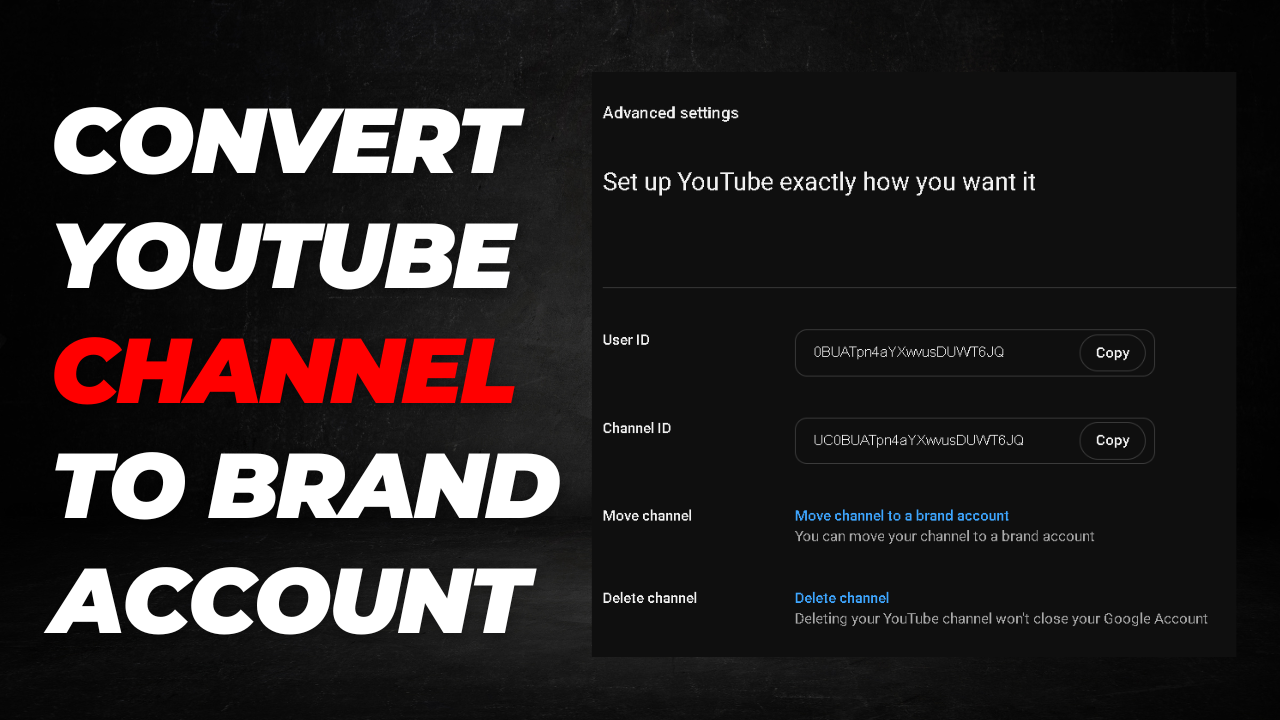
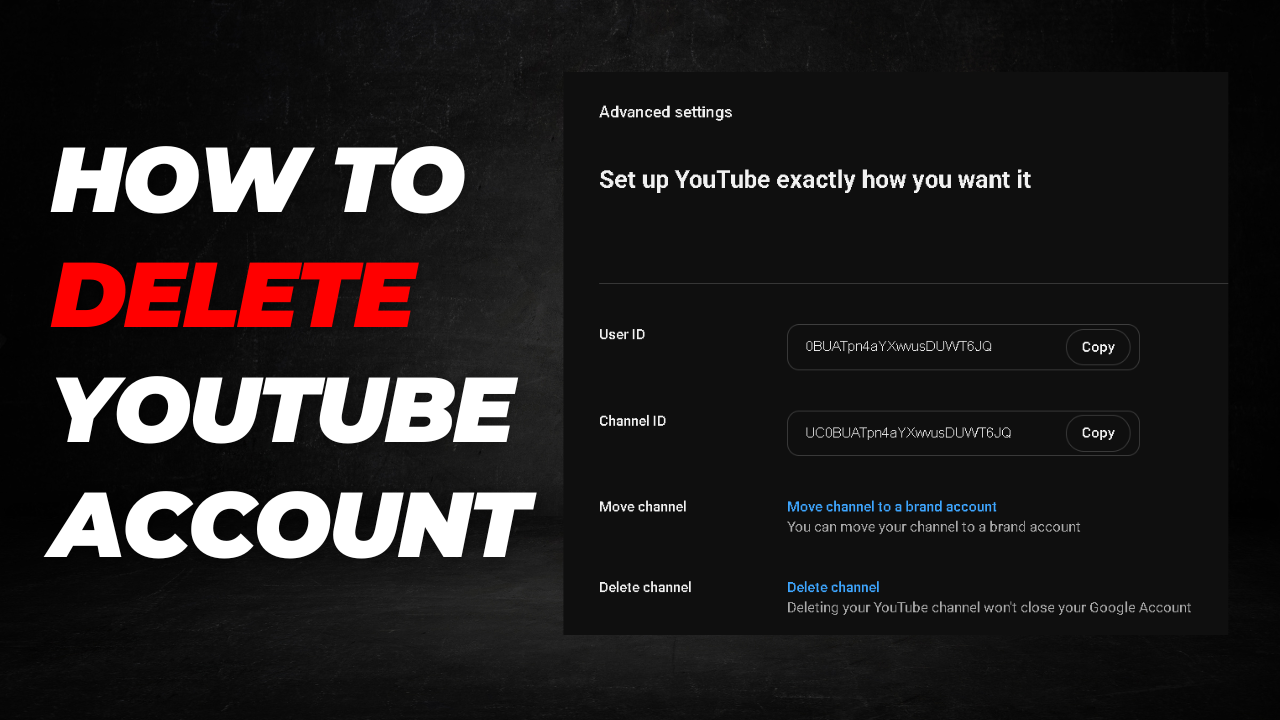
Step 3: When you click on Settings, you will see a few different options. Among these, you need to click on View advanced settings.
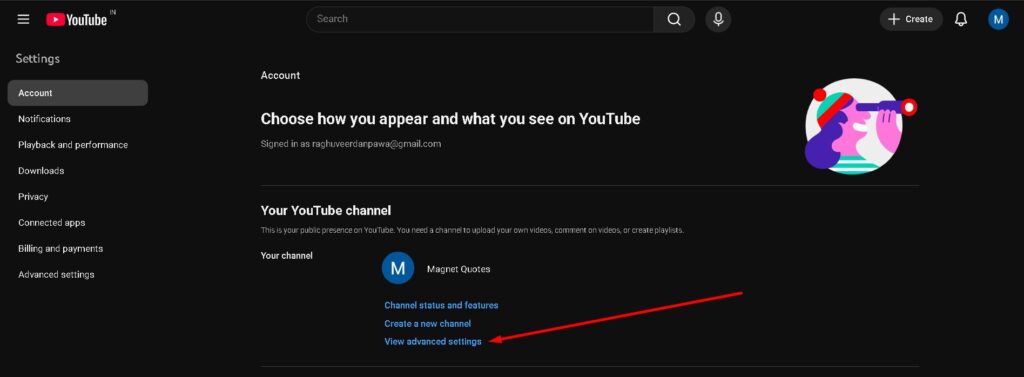
Step 4: When you click on View advanced settings, a new page will open in front of you. On this page, you need to click on Delete channel.
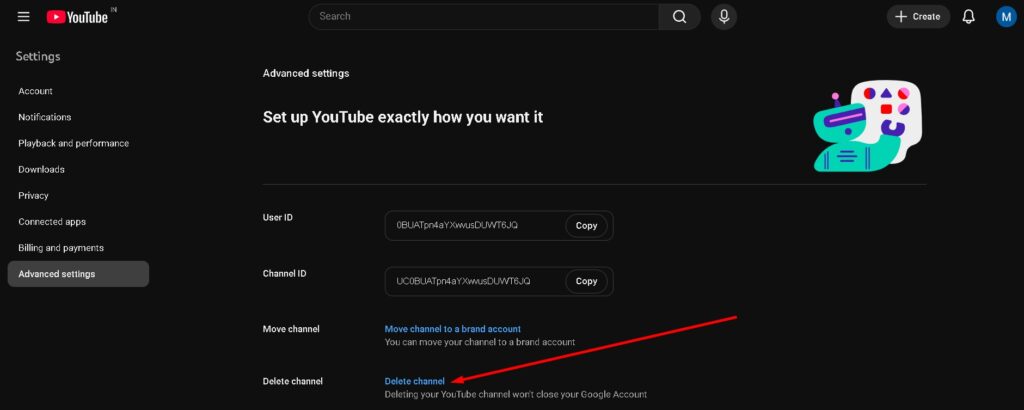
Once you click on Delete channel, you will be asked to enter the password for your Gmail account. You need to enter your password to log in. After this, you will see a confirmation page, where you need to click on Delete channel once again.
As soon as you complete this entire process, your account will be successfully deleted. In this way, you can delete your account very easily.
What Happens When You Delete a YouTube Channel
When you delete your channel, you may see several types of effects that you should know about, which are as follows:
Your channel will be deleted forever.
The videos on your channel will also be deleted.
Whatever subscribers you have on your channel will be gone.
All your likes and comments will be deleted.
All the playlists on your channel will be deleted.
In this way, everything associated with your channel will be deleted all at once. Therefore, you should delete your channel only when absolutely necessary.
FAQ
Q1: What is the difference between hiding and deleting a YouTube channel?
Ans: Hiding your channel makes your content (videos, playlists, likes, and subscriptions) private, but it does not erase them; you can re-enable your channel later. Deleting a YouTube channel is permanent—it completely erases all your videos, comments, messages, playlists, and history forever.
Q2: Can I delete my YouTube channel without deleting my Google account?
Ans: Yes, you can permanently delete your YouTube channel and all its content without affecting your Gmail, Google Drive, or overall Google account. Following the steps in this guide will only remove your YouTube presence.
Q3: How long does it take for Google to permanently delete a YouTube channel?
Ans: Usually, the channel is deleted within a few minutes. However, it can take a few days for all your video thumbnails, data, and search listings to completely disappear from the platform.
Q4: Can I recover my YouTube channel after deleting it?
Ans: No, once you complete the “Delete channel” process and confirm it, the action is permanent. Google cannot recover your deleted videos, subscribers, or comments. If you want a temporary break, you should choose the “Hide channel” option instead.
Q5: Will deleting my YouTube channel also delete my comments on other videos?
Ans: Yes, when you permanently delete your YouTube channel, any comments, replies, and likes you have left on other creators’ videos will be permanently removed as well.
Q6: How do I delete a YouTube channel on a phone (Android or iPhone)?
Ans: To delete your channel on a mobile device, open your phone’s web browser, go to YouTube, and switch to “Desktop Site” mode in your browser settings. From there, you can follow the same steps: Settings > Advanced Settings > Delete Channel. (Note: You cannot delete a channel directly through the standard YouTube mobile app).
Q7: Can someone else use my old YouTube channel name after I delete it?
Ans: Your specific channel URL and unique handle (@username) may become available for others to claim after a certain period. However, anyone can create a channel with the same display name at any time, as YouTube display names do not have to be unique.