Often, YouTube content creators want to change their channel name but are unable to do so due to a lack of proper information. In this article, we will explain the complete process of how to change your YouTube channel name on both PC and mobile.
Changing a YouTube channel name is very easy. If you want to give your channel a professional look and want it to rank in search results, then a good channel name can be beneficial for you in many ways. Read this article carefully for detailed information on how to change your YouTube channel name.
How to Change YouTube Channel Name
You can change your channel name by going into your YouTube channel settings. If you are a PC user and want to change your YouTube channel name on your laptop or computer, you need to follow the process below:
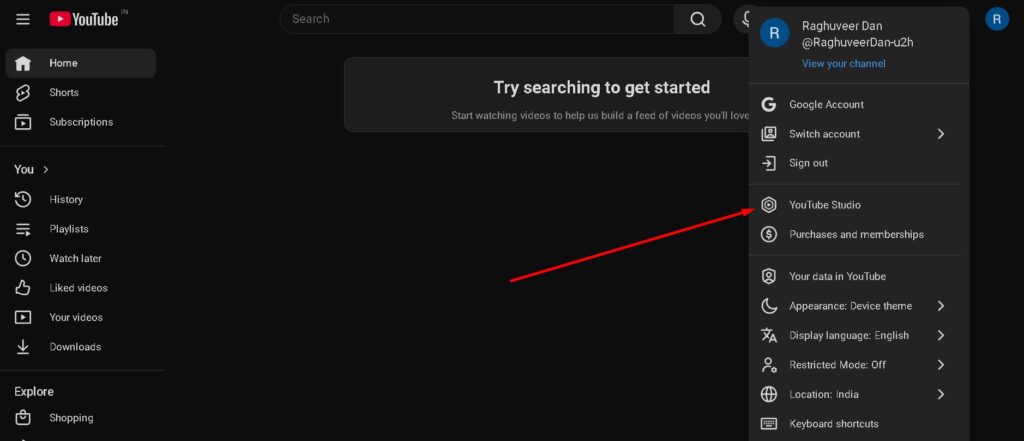
Step 1. – First, visit the official YouTube website on your computer. After this, you will see your channel logo at the top; click on it.
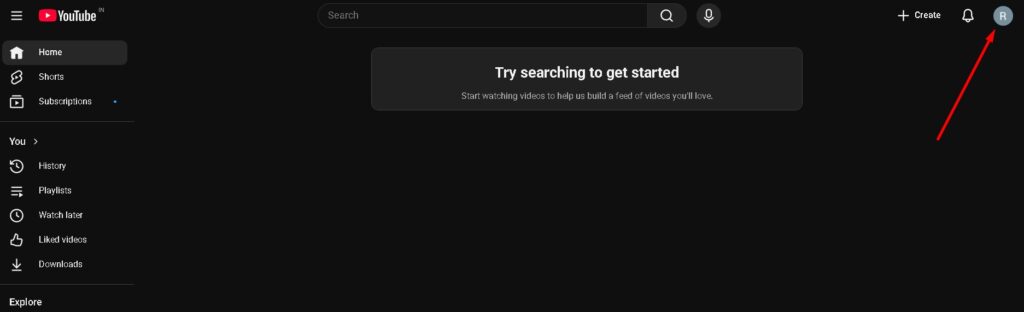
Step 2. – Now a menu will open in front of you. In this menu, you need to click on YouTube Studio.
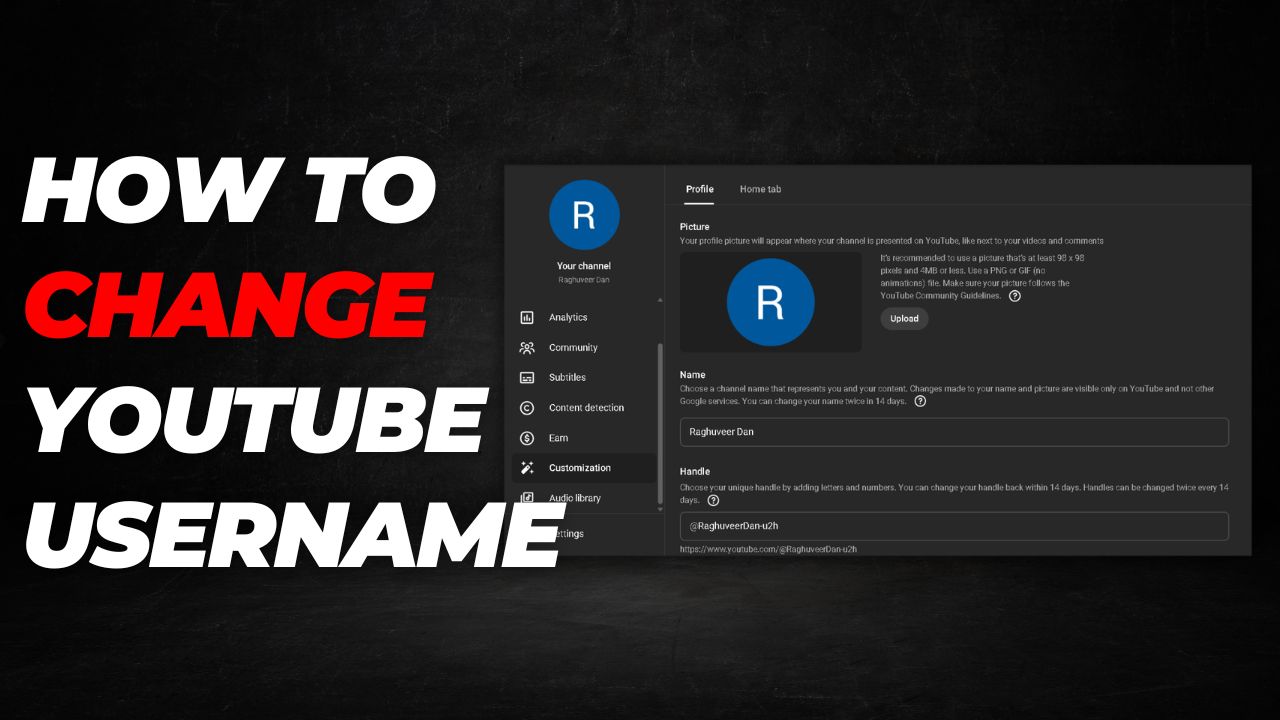
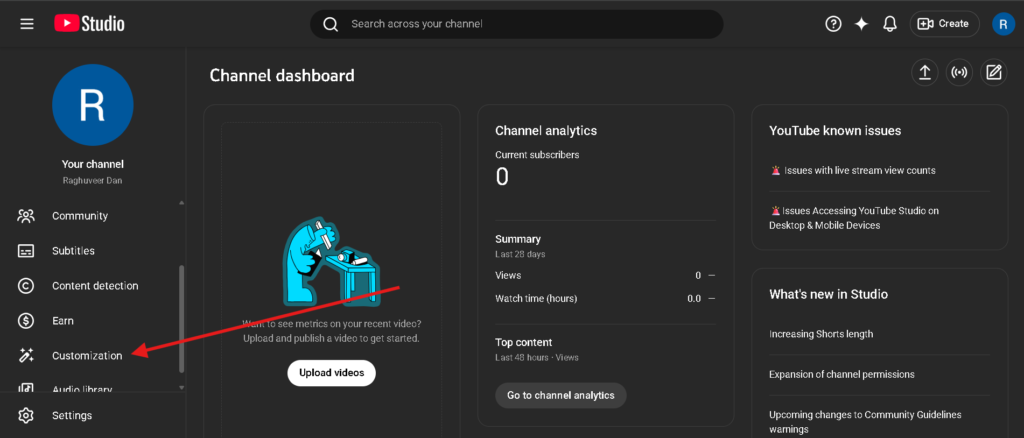
Step 3. – You will now see the YouTube Studio page. Here, you need to click on Customization.
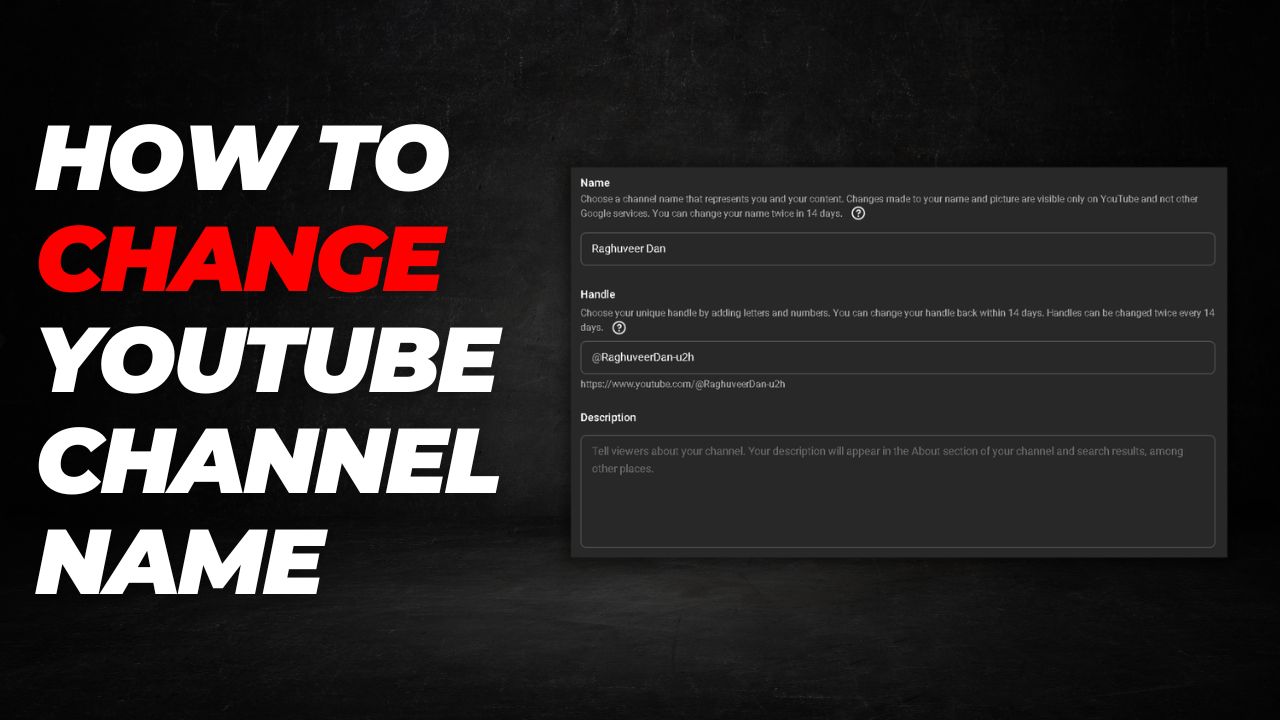
Step 4. – Following this, the channel customization settings will open. In the Name section, click on your current channel name and type the new name for your channel.
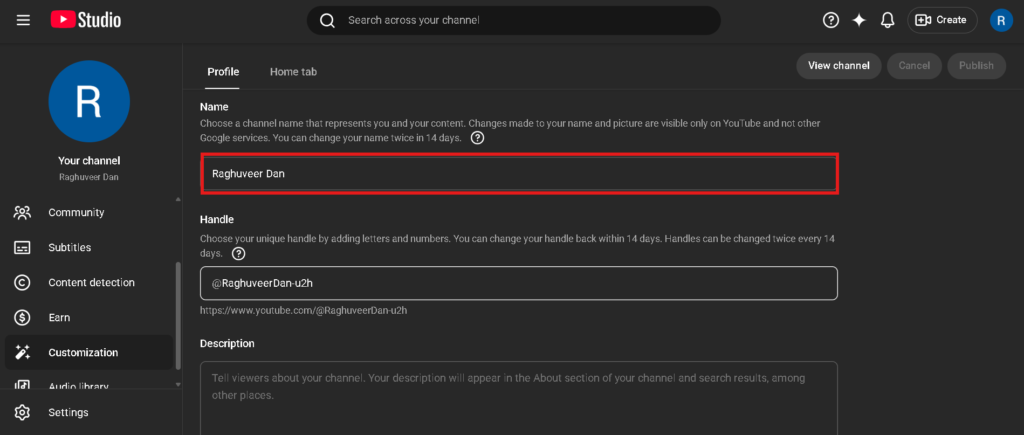
After completing this process, you will see the Publish option at the top. Click on it. Once you complete these steps, your channel name will be successfully changed.
How to Change YouTube Channel Name From Mobile
If you are a mobile user, you can also change your channel name using your phone. To change your YouTube channel name from mobile, follow the steps below:
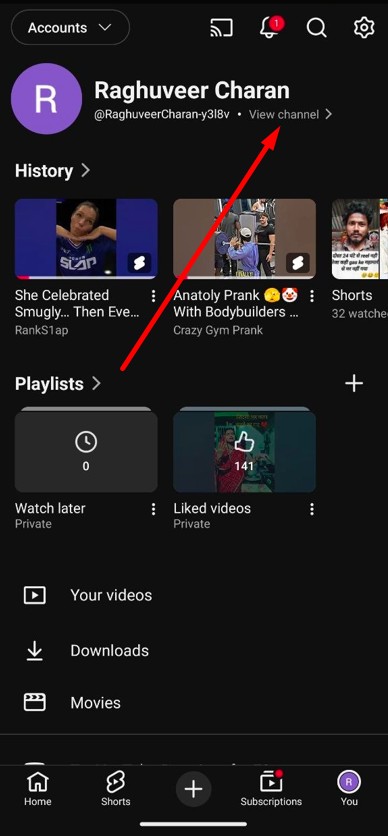
Step 1. – First, open the official YouTube application on your phone. After that, click on your channel logo located at the bottom.

Step 2. – When you click on your channel logo, you will see the View Channel option. Click on it.
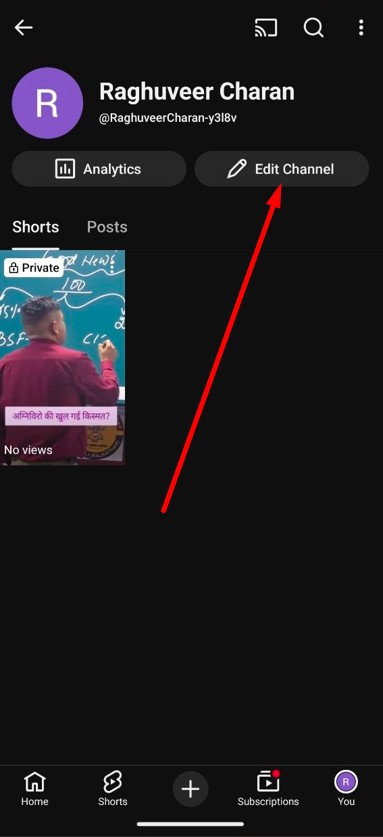
Step 3. – Now you will see your channel page. Here, click on Edit Channel (represented by a pencil icon or button).
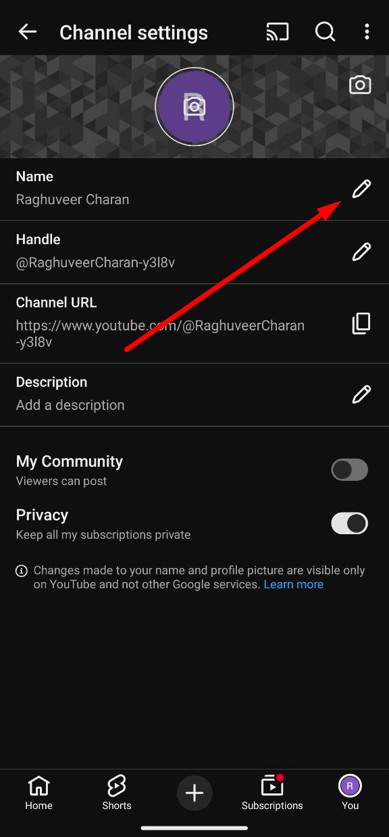
Step 4. – You will now see the channel editing page. Click on the pencil icon next to your channel name.
Step 5. – You will be prompted to edit the channel name. Type the new name for your channel and then click on Save.
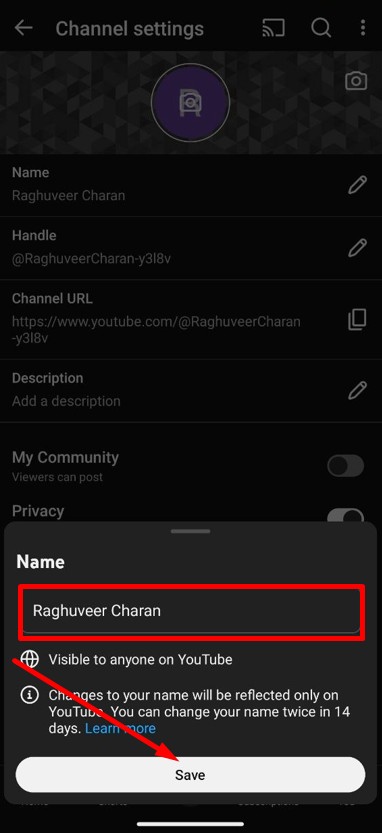
Once you complete this process, your channel name will be successfully changed. This way, you can easily update your channel name.
Note – If you are changing your channel name, keep in mind that you can only change your name twice within 14 days. This means if you change your name today, you may have to wait before you can change it again if you have already exhausted your limit.
Frequently Asked Questions
Can I change my YouTube channel name on a mobile phone?
Yes, you can easily change your YouTube channel name using the official YouTube mobile app by going to your channel profile and selecting the edit option.
How many times can I change my YouTube channel name?
According to YouTube policy, you can change your channel name twice within a 14-day period. If you change it today, you must wait the required time before changing it again.
Will changing my channel name help my channel rank in search?
Yes, choosing a good, professional name can help your channel look more authentic and improve its chances of ranking better in search results.
Where is the option to change the name on a PC?
On a PC, you can change the name by navigating to YouTube Studio and then selecting the “Customization” section.