
Whenever you search for something on YouTube, the platform automatically saves the keywords you type. This is known as YouTube Search History. If you want to maintain your privacy, deleting your search history can be a useful step.
First, it is important to understand that Search History and Watch History are two different things. Watch History stores the videos you have watched, while Search History stores the keywords you have searched for. In this article, we will learn how to delete YouTube Search History.
How to Clear YouTube Search History on PC
If you are a PC user, you can delete your YouTube search history by visiting the YouTube website. For this, you need to follow a few simple steps given below.
Step 1. – First, open the Google Chrome application on your computer or laptop. Then visit the website https://www.youtube.com/. After that, you will see your YouTube channel logo. Click on it.

Step 2. – When you click on the logo, a menu will open. From this menu, select the option called Your data in YouTube.

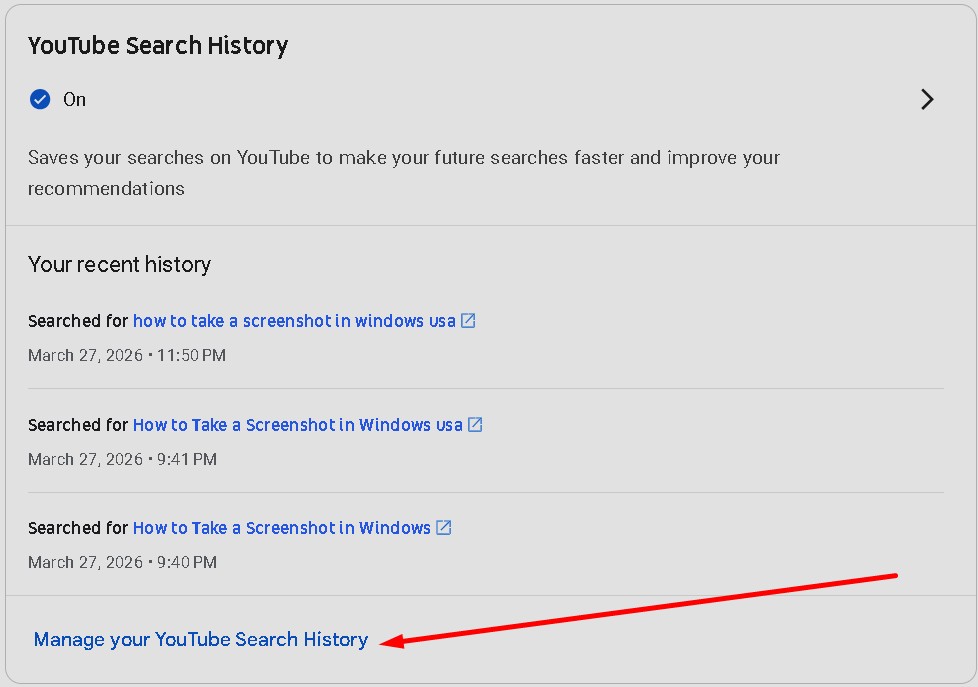
Step 3. – A new page will open. Scroll down on this page until you see the option Manage your YouTube search history, then click on it.
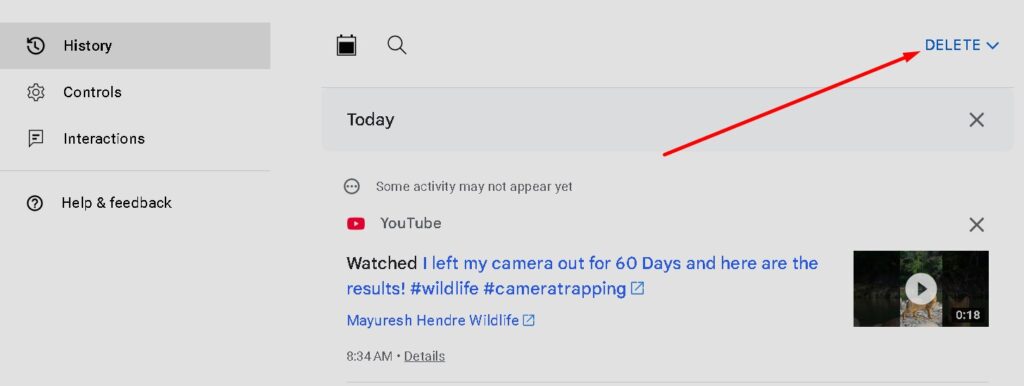
Step 4. – Now the YouTube History page will appear. Scroll down and click on the Delete option.
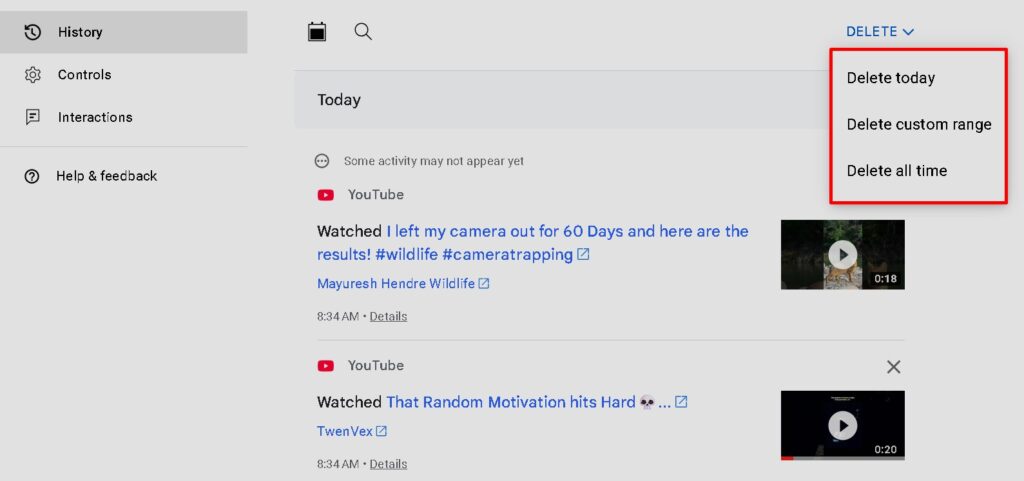
Step 5. – A menu will appear where you can select how much search history you want to delete.
- Delete today – Click this option to delete today’s search history.
- Delete custom range – Click this option to delete search history from a specific date range.
- Delete all time – Click this option to delete your entire search history.
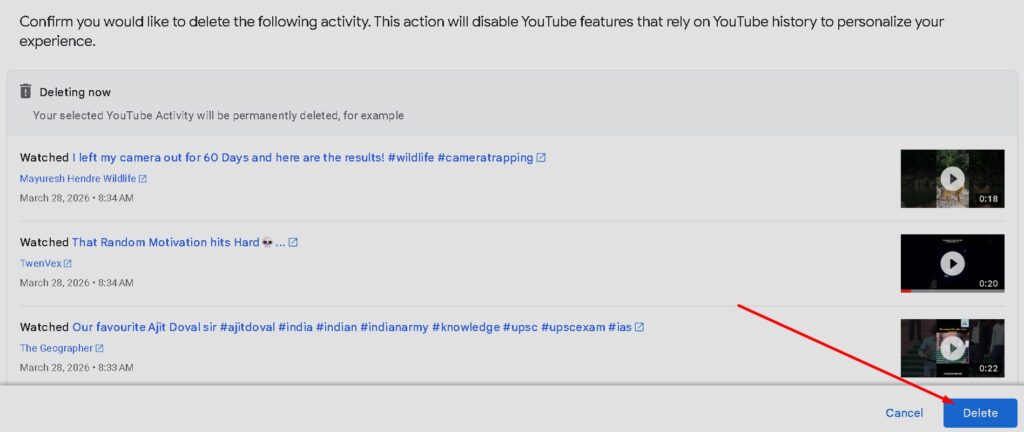
Step 6. – Now a confirmation page will appear for deleting the search history. At the bottom of the page, click on the Delete option.
After completing this process, you will see a Deletion Complete page. This means that all the search history from your channel has been successfully deleted. By following this method, you can easily delete your YouTube search history on a PC.
How to Clear YouTube Search History on Mobile
If you are a mobile user, you can also delete your search history through the settings of the YouTube application. Follow the steps below.
Step 1. – First, open the YouTube application on your phone. Then tap on your channel logo at the bottom of the screen.

Step 2. – Now your channel homepage will open. At the top of the page, you will see the settings icon. Tap on it.

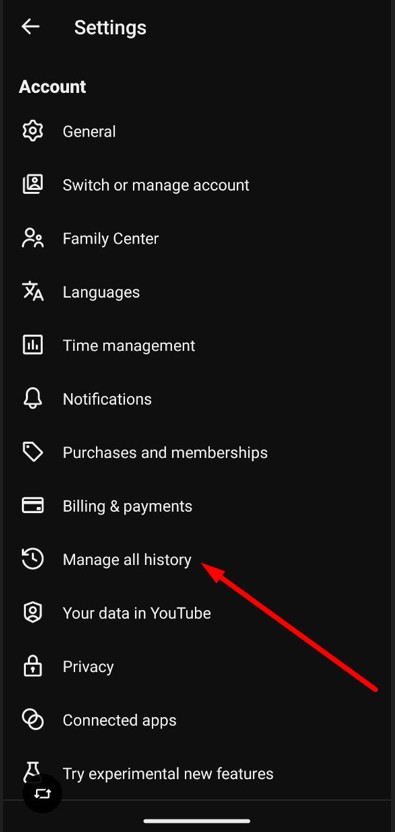
Step 3. – After tapping on settings, account-related options will appear. Here you need to tap on Manage All History.
Step 4. – The YouTube History page will open. Tap on the Delete option.
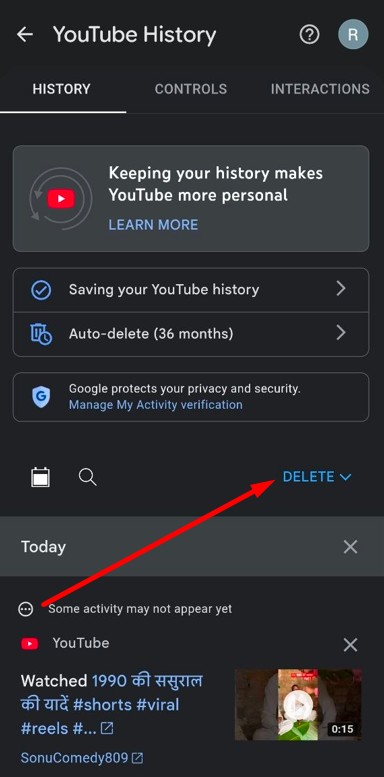
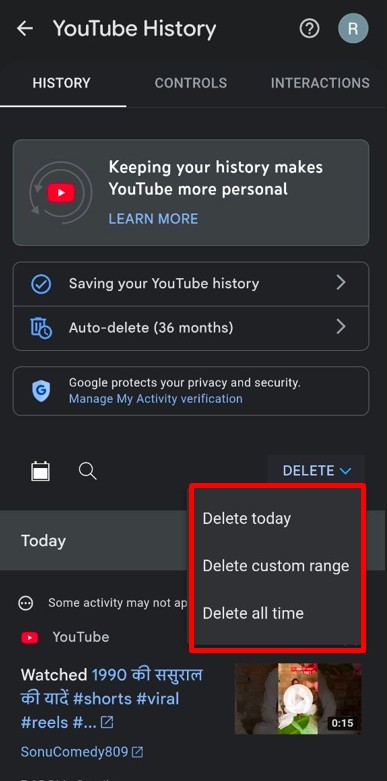
Step 5. – After tapping Delete, a menu will appear where you can choose how much history you want to delete.
Step 6. – Now a confirmation page will appear. Tap on the Delete option to confirm.

Once the process is completed, you will see a Deletion Complete page. Tap on Got it. By following this method, you can easily delete YouTube search history on your mobile device.
Frequently Asked Questions
What is YouTube Search History?
YouTube Search History is the record of all the keywords you have searched for on YouTube.
Is YouTube Search History different from Watch History?
Yes, they are different. Watch History stores the videos you have watched, while Search History stores the keywords you have searched for.
Can I delete YouTube Search History from a PC?
Yes, you can delete your search history by visiting the YouTube website and using the Delete option in the YouTube History section.
Can I delete YouTube Search History using a mobile phone?
Yes, you can delete it through the YouTube app settings by selecting Manage All History and using the Delete option.
What happens after deleting YouTube Search History?
After deleting the search history, the keywords you searched previously will be removed from your YouTube account history.