Today, we are going to show you how to block a YouTube channel or its videos. If you want to stop seeing videos from unwanted channels in your YouTube app, this guide will be incredibly useful. We will share the easiest and safest way to block a YouTube channel.
How to Block a YouTube Channel
You have probably noticed that YouTube frequently recommends videos from various channels. However, you might often come across content from channels you have no interest in watching. When this happens, you can easily block those unwanted channels by following the steps below.
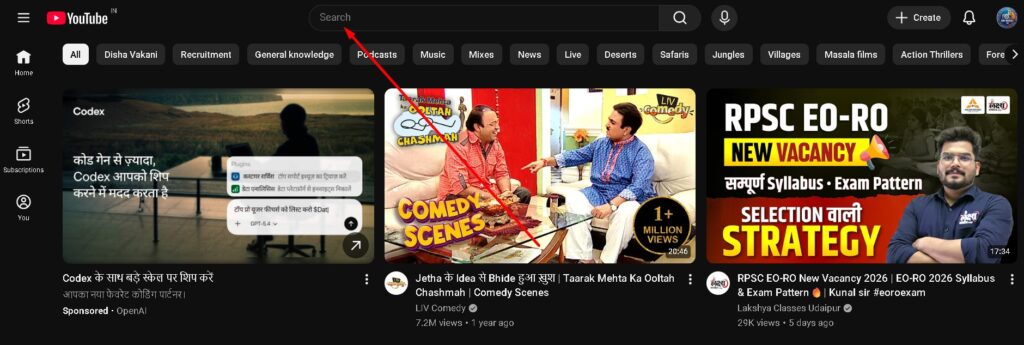
Step 1: First, go to the official YouTube website. Click on the search bar at the top of the screen and search for the name of the channel you want to block.
Step 2: You will see a list of channels matching that name. Click on the specific channel you wish to block.
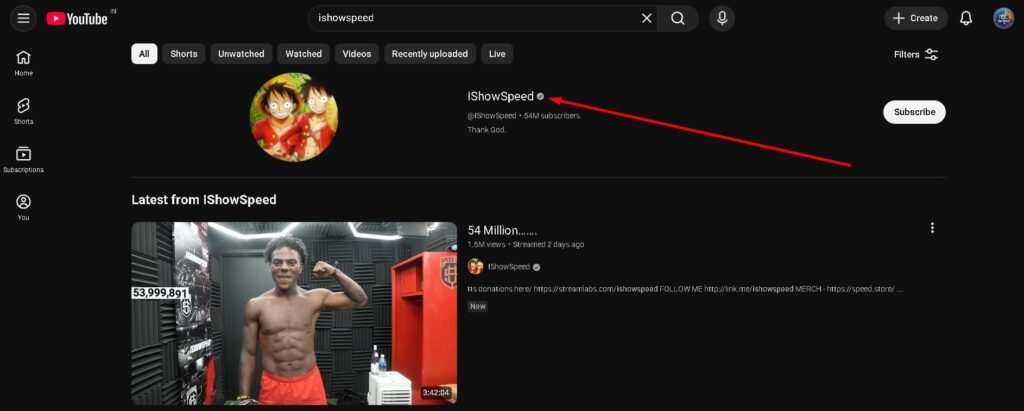
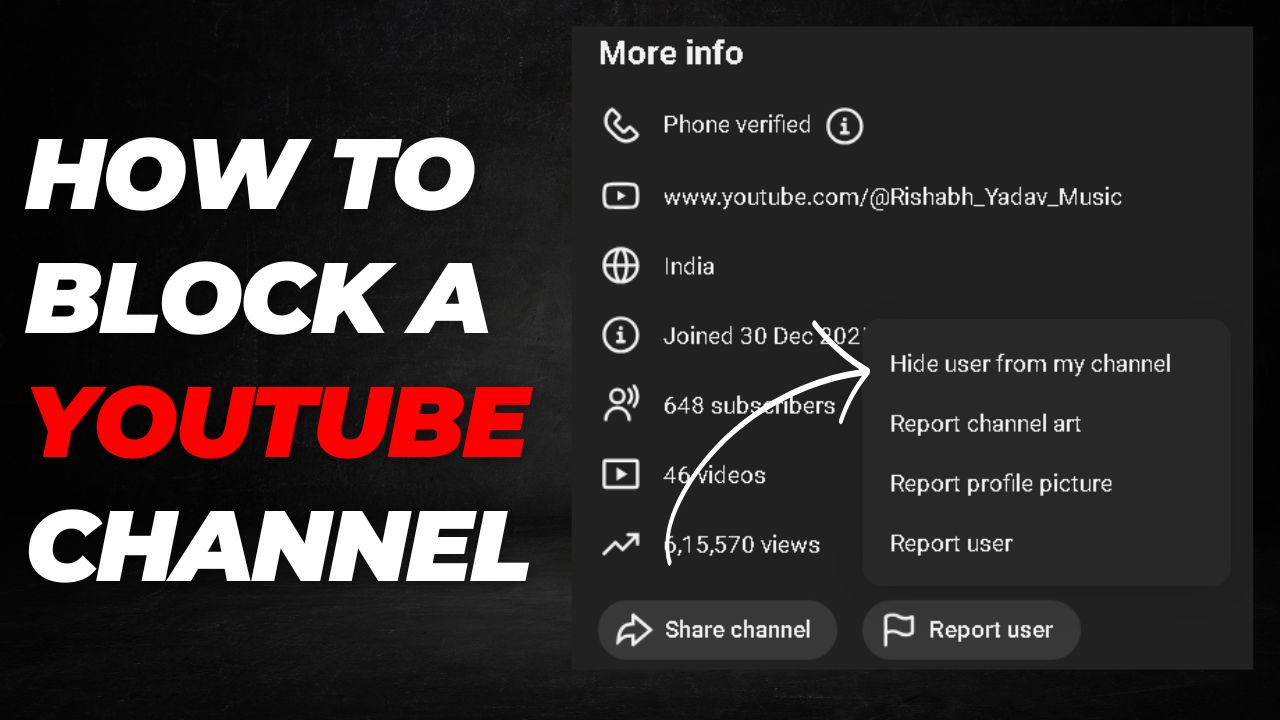
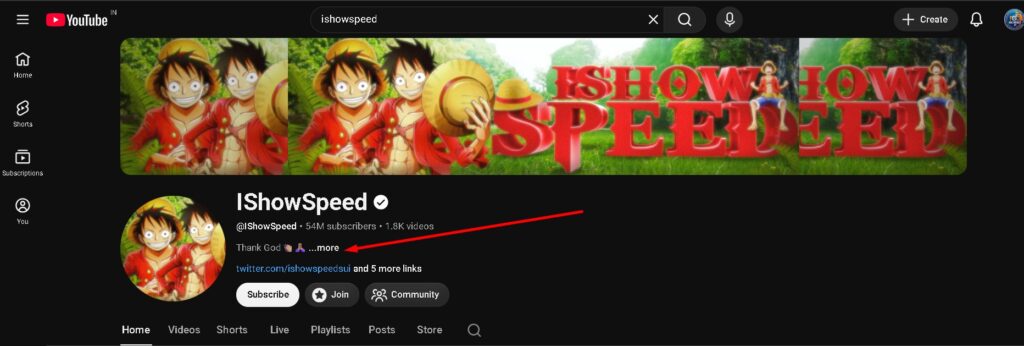
Step 3: Once you click on the channel, you will be taken to its homepage. Look right below the channel name and handle, and click on the More option.
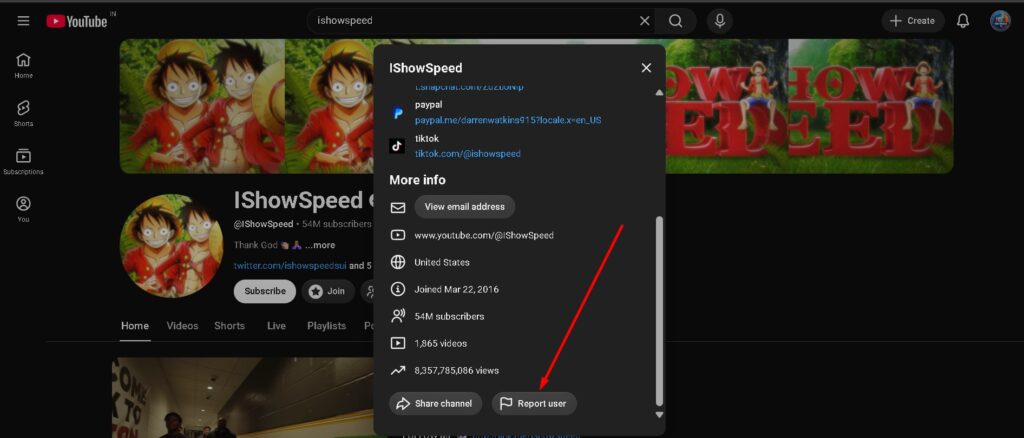
Step 4: Clicking More will open a pop-up menu. Scroll to the bottom of this menu and click on Report user.
Step 5: A set of different options will appear. Click on Hide user from my channel.
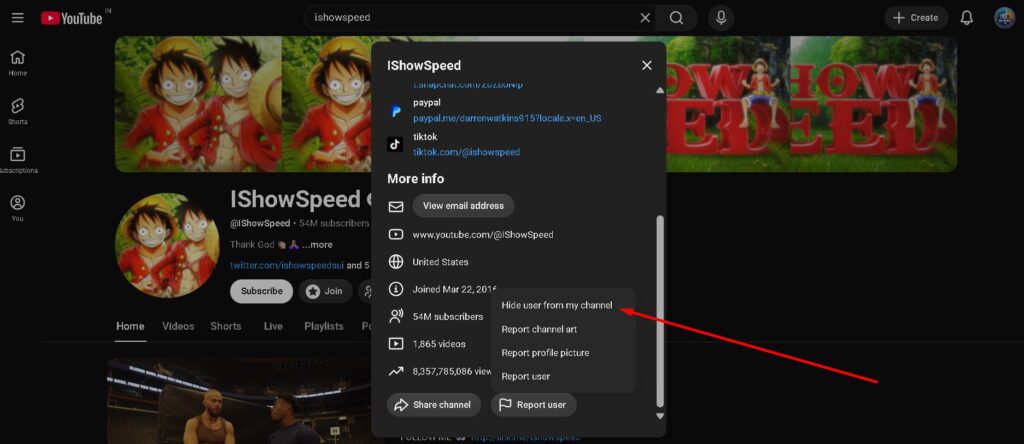
As soon as you complete these steps, a confirmation pop-up will appear. Click submit to confirm, and the channel will be permanently hidden from your YouTube channel.
Hiding Videos From Your Homepage
If YouTube recommends a video that you do not enjoy, or if you simply never want to see content from that specific channel on your homepage again, you can easily hide it directly from the homepage. Just follow these steps:
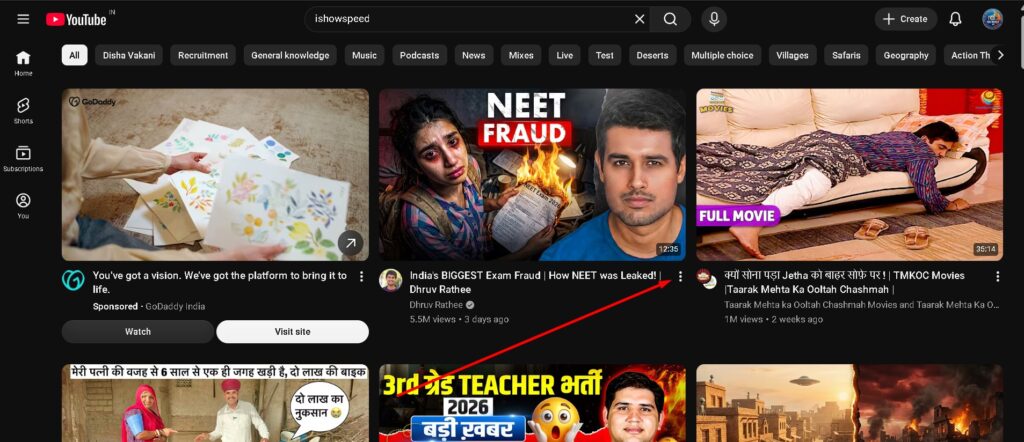
Step 1: Go to the YouTube website to view your homepage. Find the video you want to remove, and click on the three-dot icon located right below it.
Step 2: A pop-up menu will open. From the options, click on Don’t recommend channel.
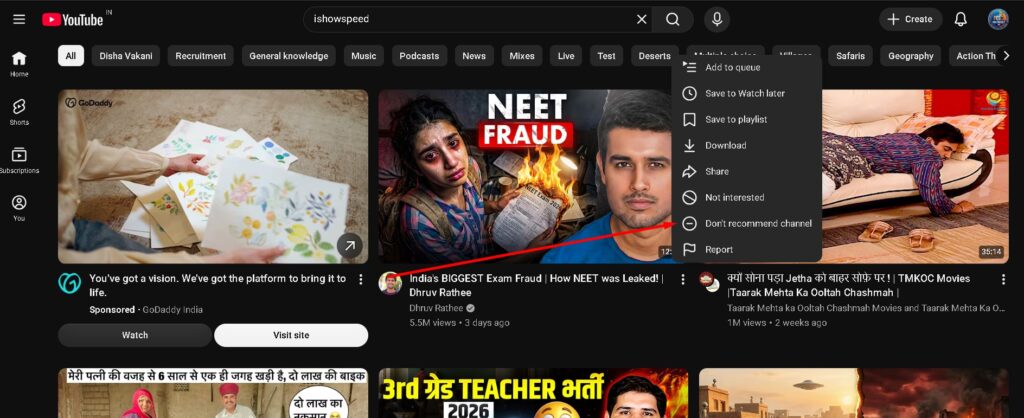
Once you complete this process, videos from that channel will be permanently removed from your YouTube homepage. This is a quick and effective way to hide any channel or video from your feed.
How to Block a YouTube Channel on Mobile
If you are a mobile user and want to block any YouTube channel on your device, you can easily do so by following the steps outlined below:
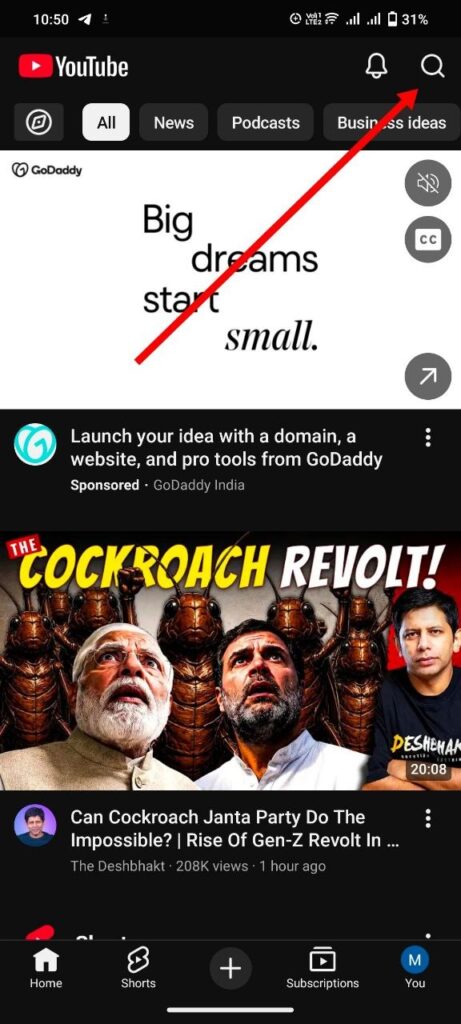
Step 1: First, open the YouTube application on your phone and tap on the search icon. Now, search for the name of the YouTube channel you want to block
.
Step 2: A list of different channels and videos will appear. Tap directly on the channel you wish to block.
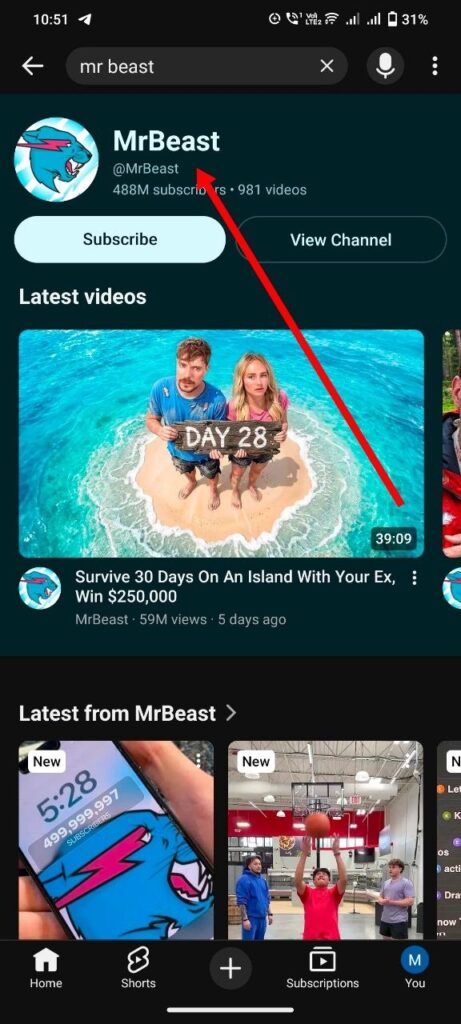
Step 3: Once you are on the channel’s main page, you will see various details related to it. Tap the three-dots icon located at the top right corner.
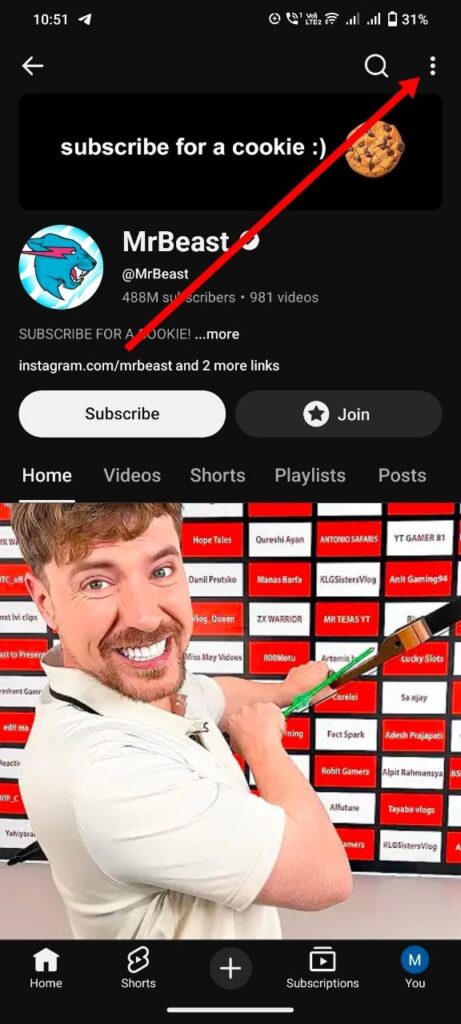
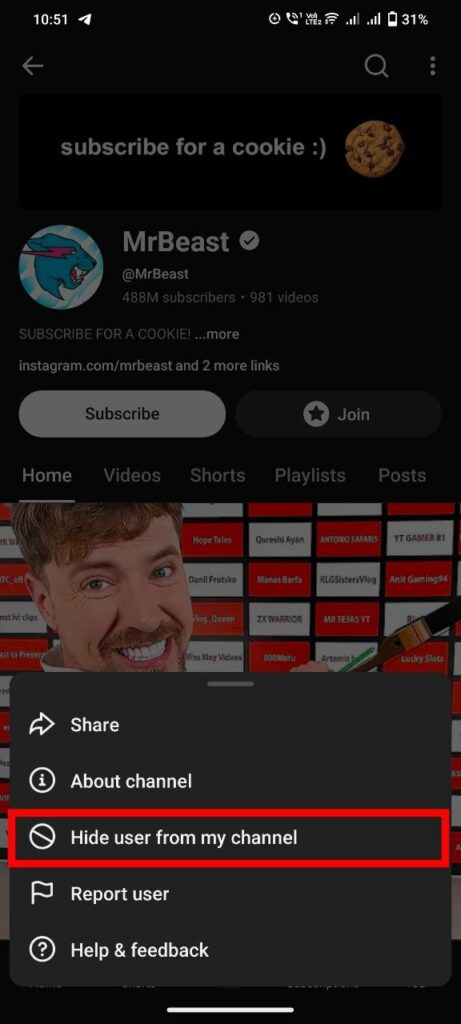
Step 4: Tapping the three dots will open a menu. From the options provided, tap on Hide user from my channel.
Step 5: A confirmation pop-up will appear. Tap on the Hide user option to confirm.
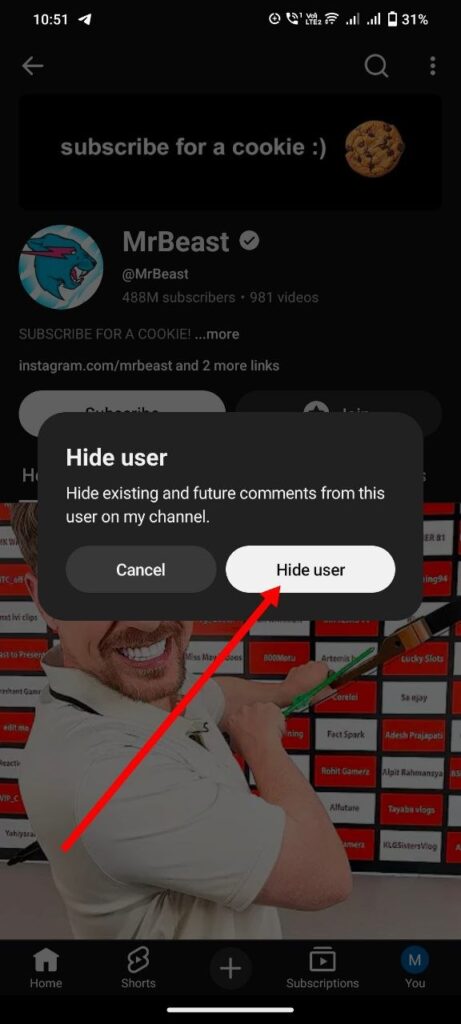
Note: Once you complete this process, that channel will be hidden from your YouTube account permanently, and you will no longer see any videos from it.
FAQs (Frequently Asked Questions)
Q1. How can I block a YouTube channel permanently?
You can block a YouTube channel by visiting the channel page, clicking on the “More” option, selecting “Report user,” and then choosing “Hide user from my channel.” After submitting, the channel will be permanently hidden.
Q2. Can I stop YouTube from recommending a specific channel?
Yes, you can stop recommendations by clicking on the three-dot menu next to a video on your homepage and selecting “Don’t recommend channel.”
Q3. What is the easiest way to hide unwanted videos on YouTube?
The easiest way is to go to your homepage, click the three-dot icon below the video, and choose “Don’t recommend channel” to remove similar content instantly.
Q4. Will blocking a YouTube channel delete its videos from my account?
No, blocking or hiding a channel only removes its videos from your recommendations and homepage. It does not delete any content from YouTube.
Q5. Can I unblock a YouTube channel after blocking it?
Yes, you can reverse your action by managing your YouTube settings or adjusting your recommendation preferences.
Q6. Why does YouTube keep showing unwanted videos?
YouTube recommends videos based on your watch history and interactions. If you don’t want certain content, use the “Don’t recommend channel” option to improve your feed.
Q7. Is blocking a YouTube channel safe?
Yes, it is completely safe. It only affects your personal viewing experience and helps you control the type of content you see.