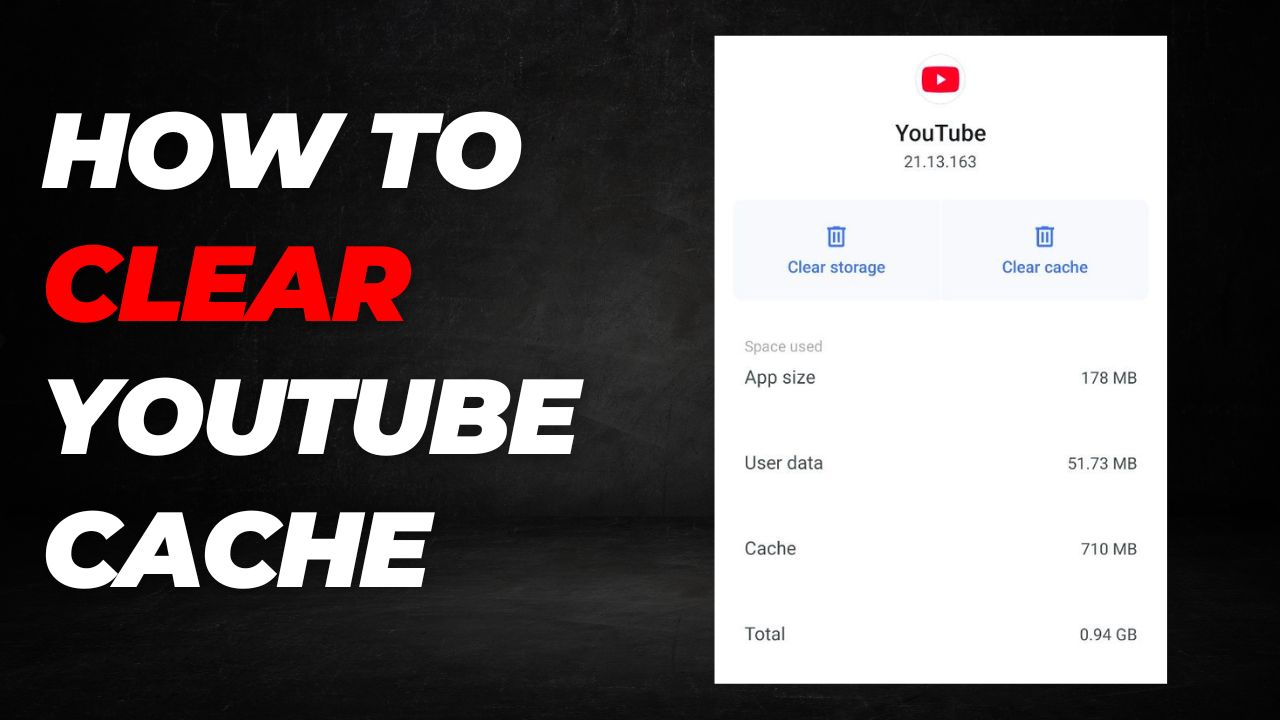
If you’re looking to clear the cache files for your YouTube app, this guide is for you. In this article, we’ll provide a detailed, step-by-step breakdown on how to clear your YouTube cache and keep your app running smoothly.
Whenever you use the YouTube app, temporary cache files are saved to your device. Over time, these files can eat up your storage space and may even cause the app to lag or glitch. Regularly clearing these files is a great way to free up memory and improve performance.
How to Clear YouTube Cache on Mobile?
Clearing your YouTube cache is completely safe. It won’t delete your personal data, account settings, or history; it simply removes unnecessary temporary files stored on your device. Follow these steps to clear your mobile cache:
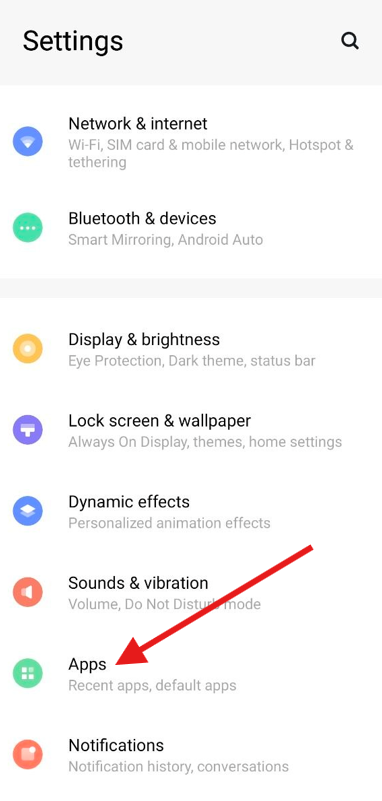
Step 1: Open the Settings menu on your phone and tap on Apps (or App Management).
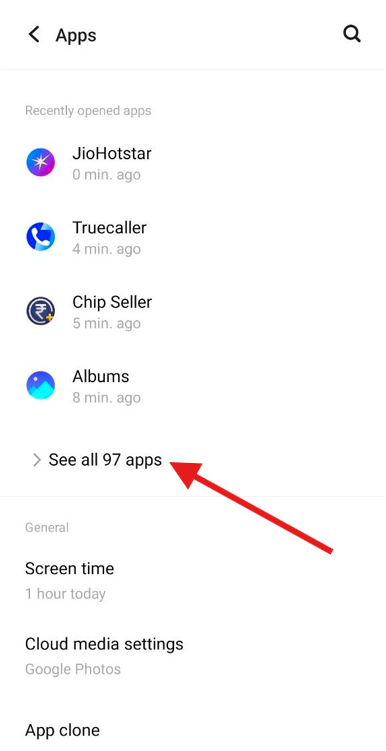
Step 2: From the list of options, select All Apps or See all apps.
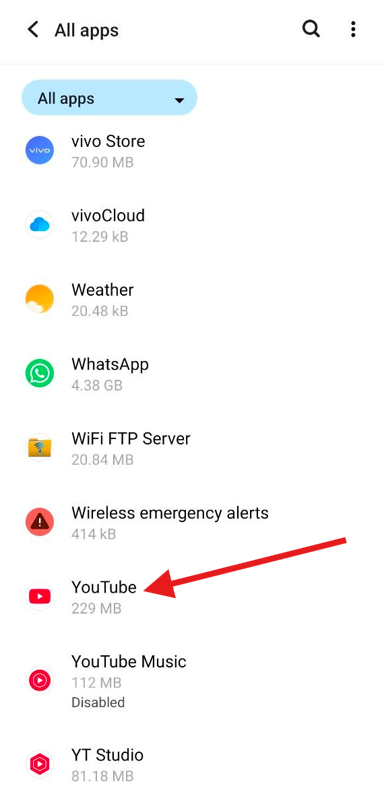
Step 3: Scroll through your installed applications and select YouTube.
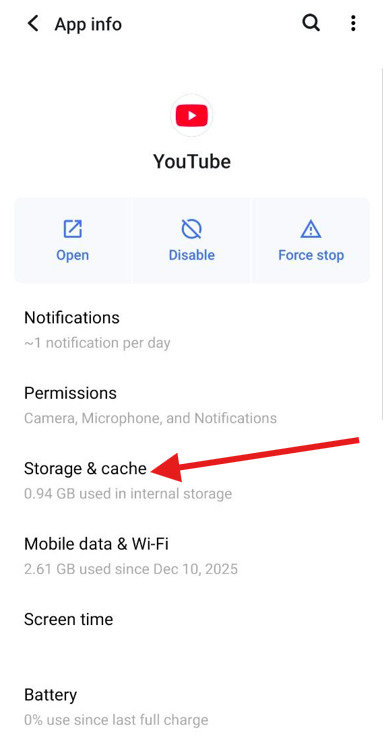
Step 4: Within the YouTube app settings, tap on Storage & Cache.
Step 5: Finally, tap the Clear Cache button.
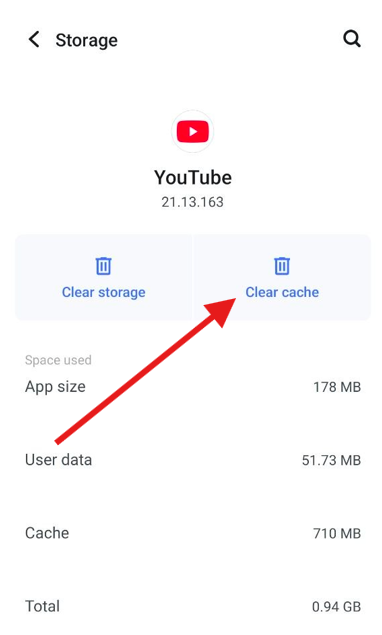
Once finished, all the temporary YouTube files stored on your device will be removed instantly. This process is a simple and effective way to maintain your phone’s storage.
How to Clear YouTube Cache on Desktop
If you use YouTube on a PC or laptop, you can clear the cache through your browser settings. Here’s how to do it specifically on Google Chrome:
Step 1: Open Google Chrome and click the three dots (menu icon) in the top-right corner.
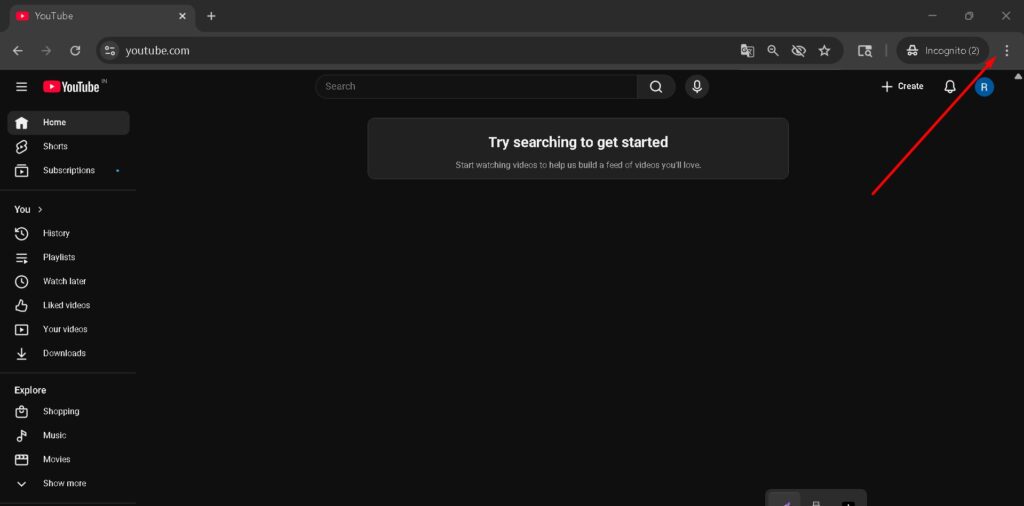
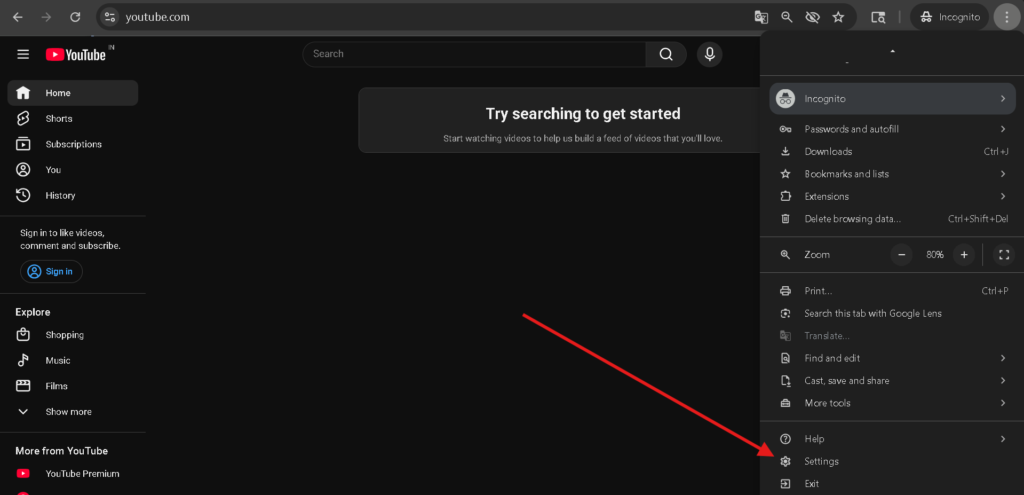
Step 2: Scroll down and select Settings from the menu.
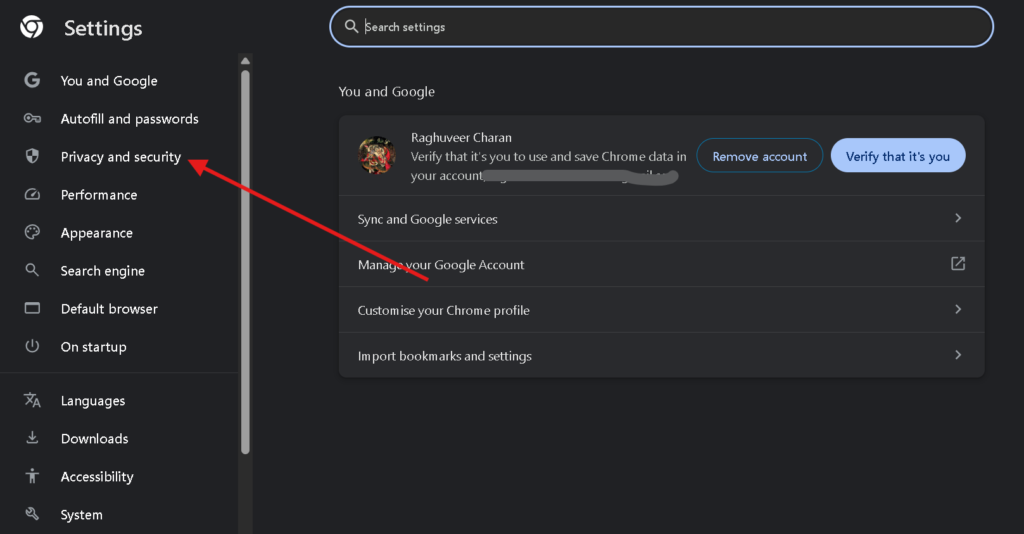
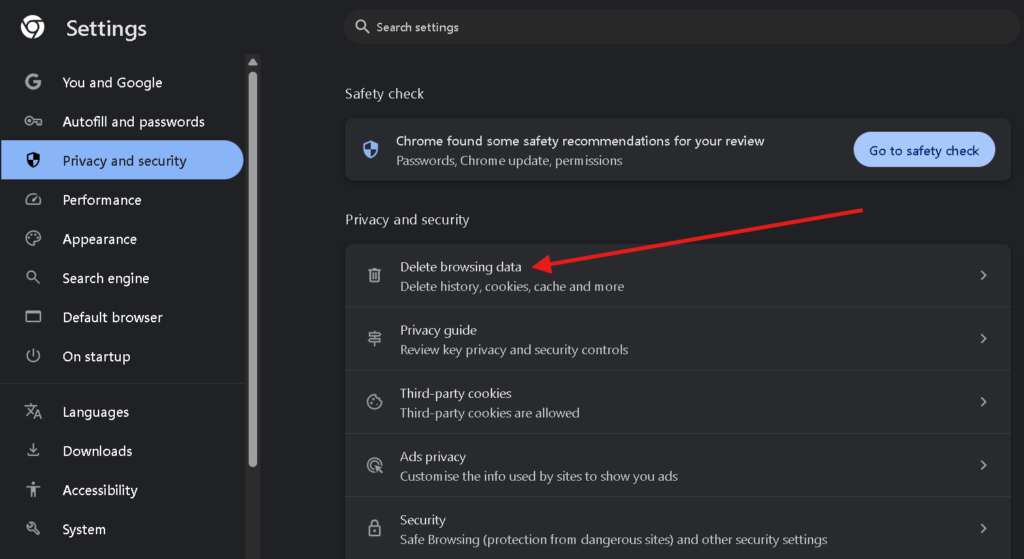
Step 3: On the left sidebar, click on Privacy and Security.
Step 4: Select the Delete browsing data option.
Step 5: In the pop-up window, check the box for Cached images and files
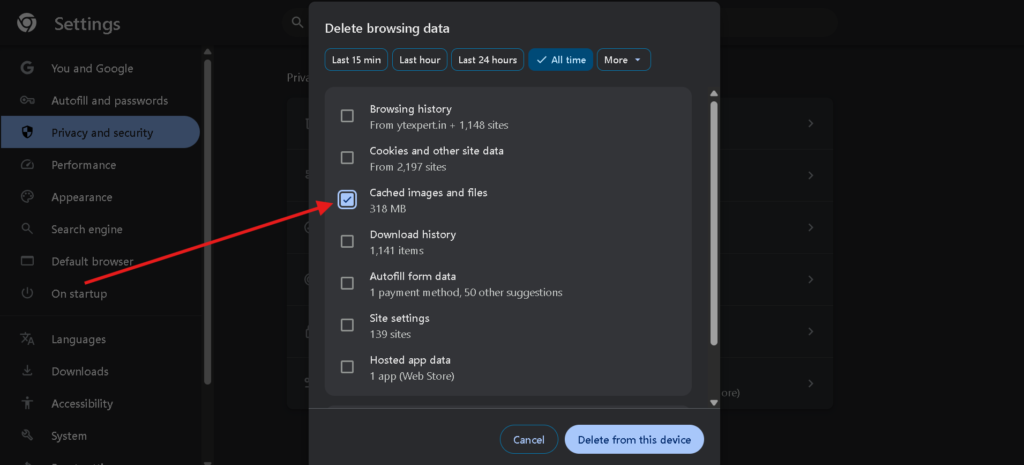
This will remove the YouTube-related cache stored in your browser, helping your web experience feel faster and more responsive.
Cache Clear vs. Storage Clear
Users often get confused between “Clearing Cache” and “Clearing Storage.” It is important to know that they serve very different purposes:
- Cache: These are temporary files automatically created while you use the app. It is perfectly safe to delete them at any time to free up space or fix minor bugs without losing personal data.
- Storage (Clear Data): This contains your primary app data, including your login credentials, personal settings, and offline downloaded videos. If you clear the storage, your YouTube app will be completely reset—you’ll be logged out, and any downloaded content will be deleted.
Note: We recommend clearing the cache first to see if it resolves your issues before opting to clear the entire storage.
Frequently Asked Questions (FAQs)
1. Will clearing YouTube cache delete my downloaded videos?
No, clearing the YouTube cache will not delete your downloaded videos. Cache only removes temporary files. However, if you select “Clear Storage” or “Clear Data,” your downloaded videos and login information will be permanently removed.
2. Why is my YouTube app taking up so much storage space?
YouTube consumes storage primarily through two ways: cached files (temporary data to speed up the app) and offline downloads. If your storage is full, clearing the cache is the best way to free up space without losing your saved content.
3. How often should I clear the YouTube cache on Android?
There is no fixed rule, but it is recommended to clear your YouTube app cache every few months or whenever you notice the app becoming slow, crashing, or if your device storage is running low.
4. Does clearing YouTube cache improve app performance?
Yes, clearing the cache can help fix YouTube app lag and resolve loading issues. It forces the app to refresh its temporary data, which often fixes minor bugs and improves the overall speed of the interface.
5. Is it safe to delete YouTube cached images and files on Chrome?
Absolutely. Deleting cached images and files on Google Chrome is a standard troubleshooting step. It helps in loading the latest version of the website and can resolve playback errors without affecting your Google account settings.