If you’re looking How to Change YouTube Username, this guide is going to be incredibly useful for you. In this article, we will provide a detailed, step-by-step breakdown of how to change your YouTube username on both desktop and mobile devices.
Every YouTube channel has a unique username that makes it easy for viewers to find your channel. Beyond that, a strong username goes a long way in giving your channel a professional appearance. Since many creators aren’t sure how to properly update their username, this guide is designed to be your go-to resource for making the switch.
How to Change YouTube Username on PC
If you are a PC or laptop user, you can change your channel name and set a unique username through your browser. To do this, follow the process below:
Step 1. First, open Google Chrome on your PC and visit the YouTube website. You will see your Channel Logo at the top; click on it.
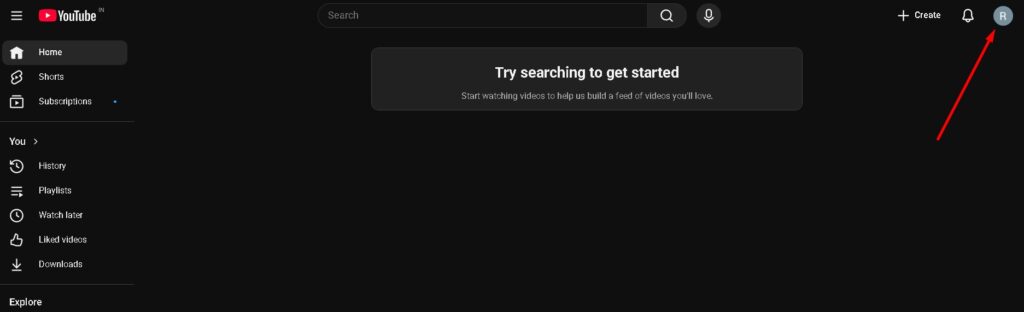
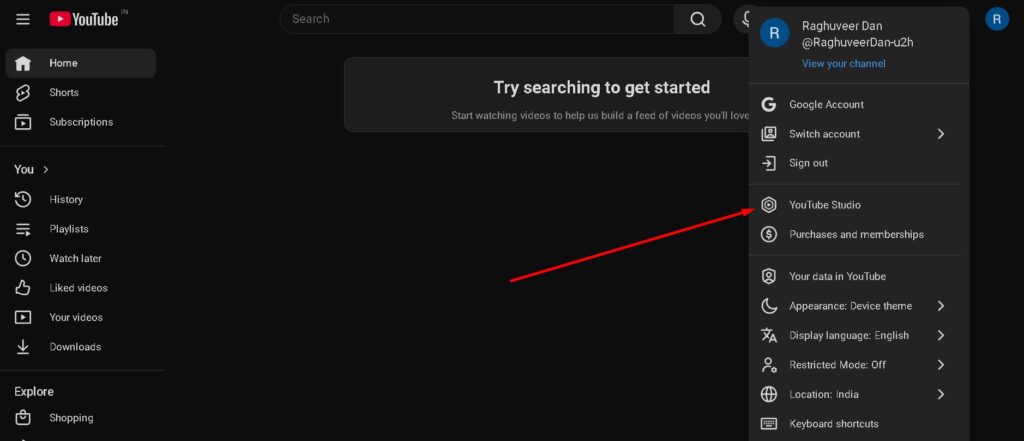
Step 2. Once you click on your channel logo, a menu will open. From here, click on YouTube Studio.
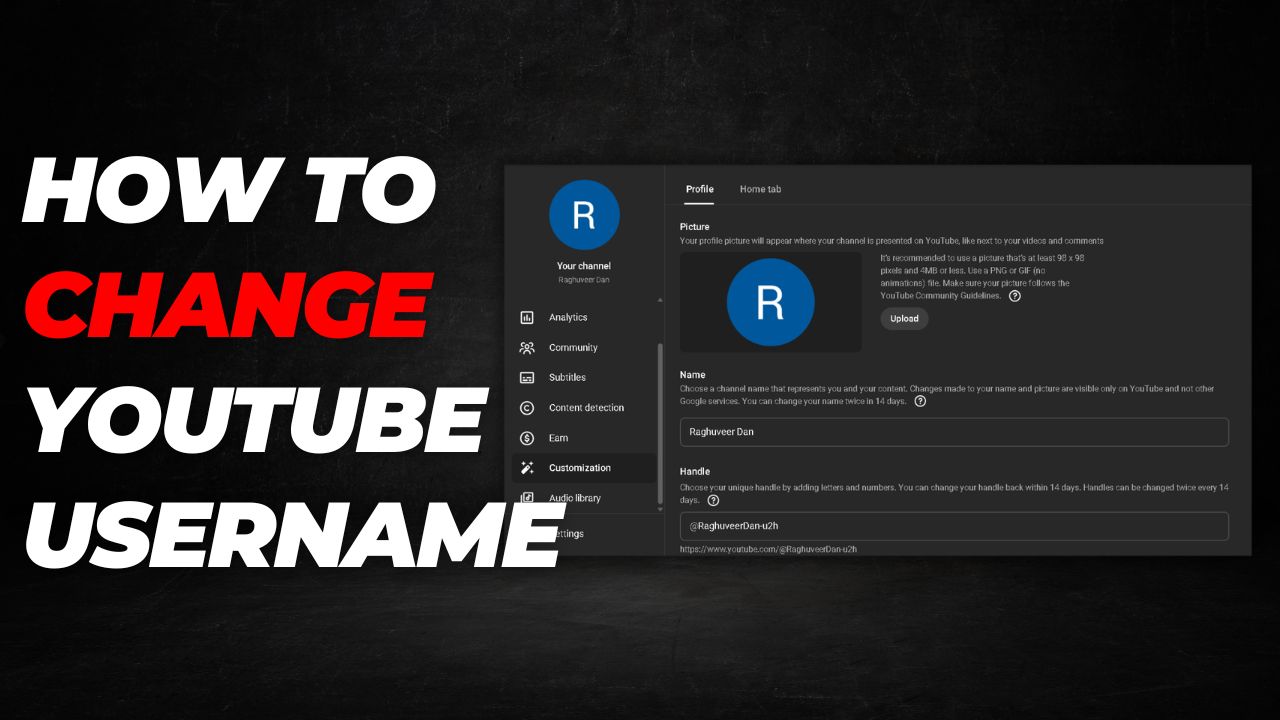
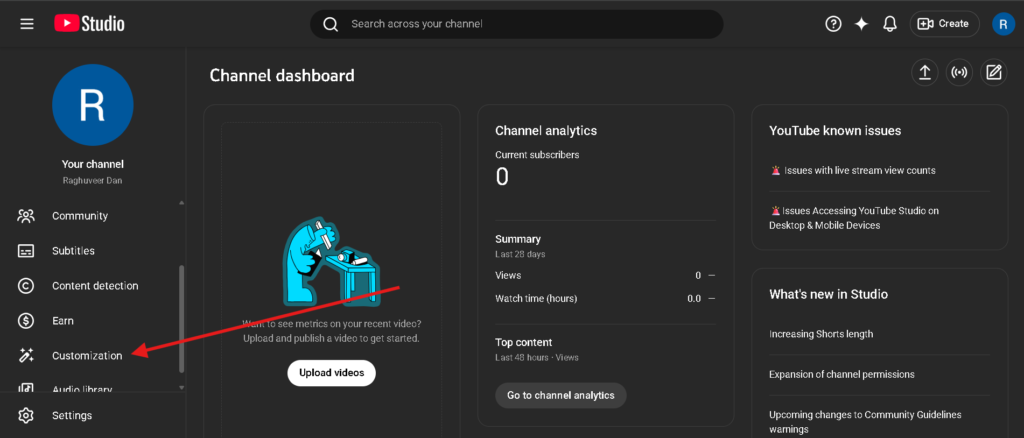
Step 3. Now you will see the YouTube Studio settings. Click on the Customization option.
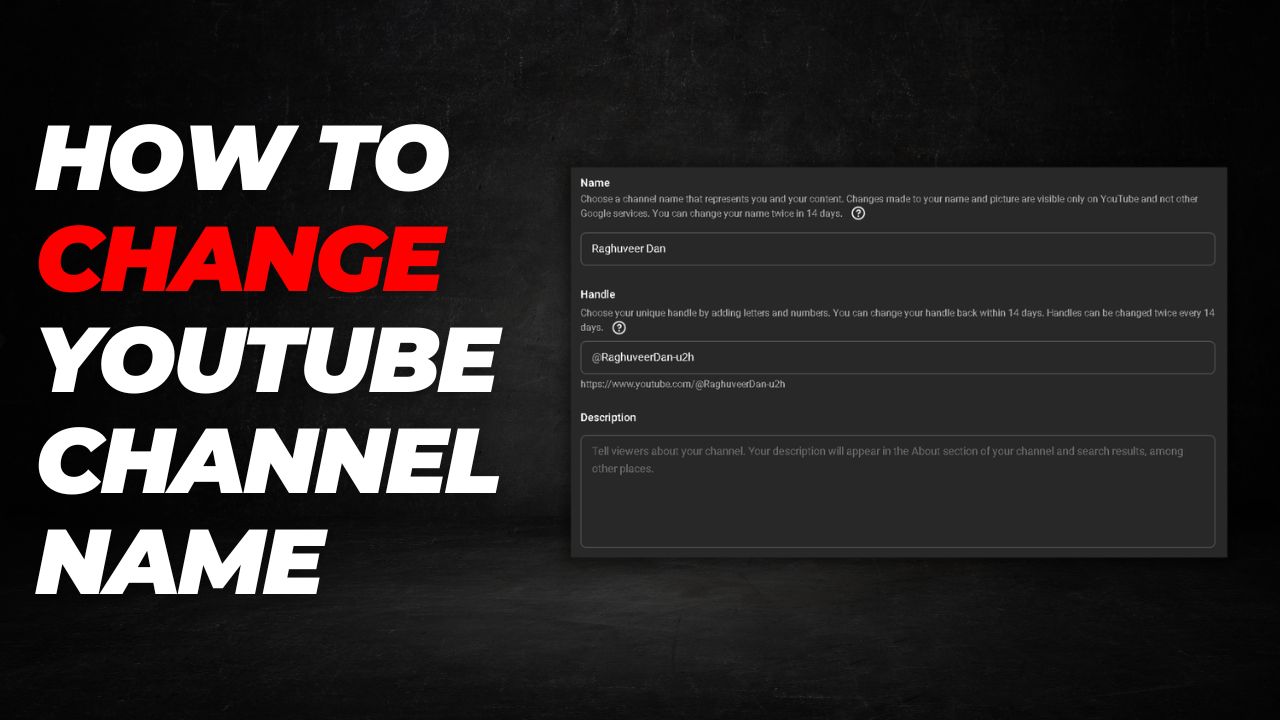
Step 4. Next, you will see the Handle option. Type a unique handle for your channel and then click on Publish .
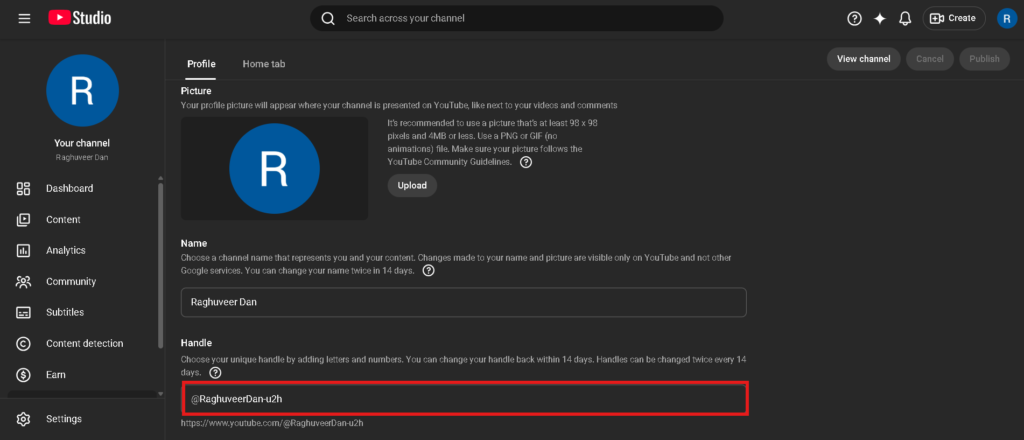
As soon as you complete this process, a new username will be successfully set for your channel. This is a very easy way to set a unique username for your YouTube account.
How to Change YouTube Username via Mobile
If you are a mobile user, you can easily change your channel’s username using your smartphone. Simply follow these easy steps:
Step 1. First, open the official YouTube app on your phone. Tap on your Channel Logo located at the bottom right corner of the screen.

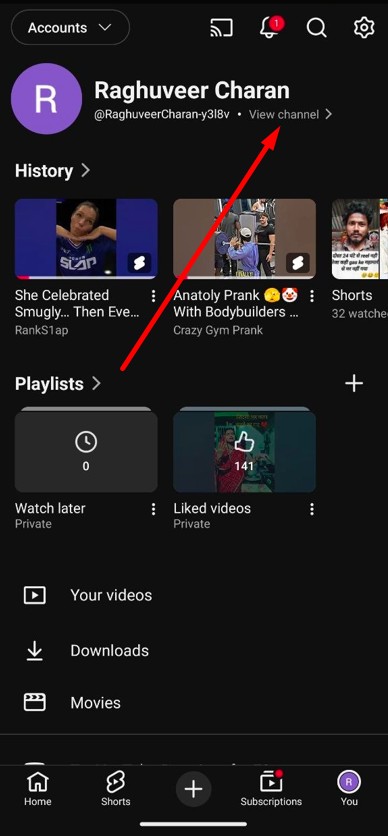
Step 2. You will now see your YouTube profile page. From here, click on the View Channel option.
Step 3. Once you are on your channel page, click on the Edit Channel button.
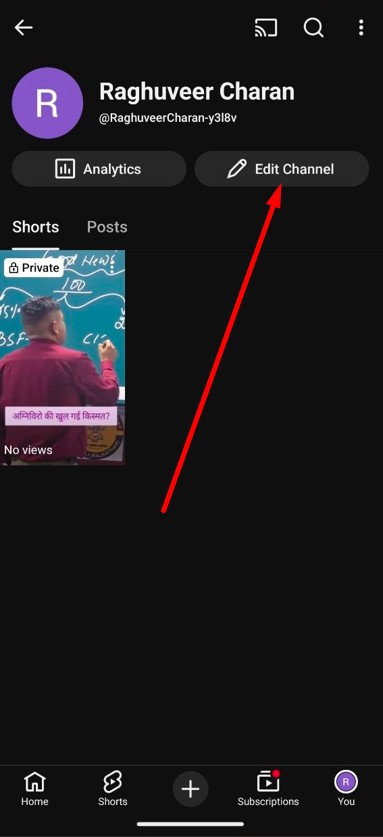
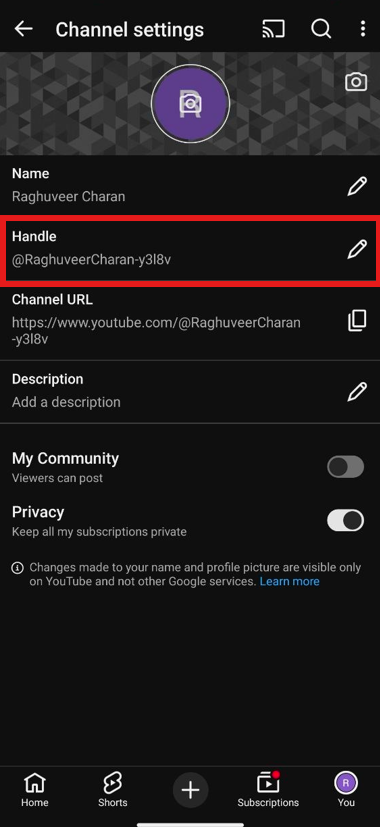
Step 4. On the Channel Settings page, locate the Handle section and click on the pencil icon next to it.
Step 5. A popup will appear allowing you to edit your handle. Type in your new unique username and then click Save.
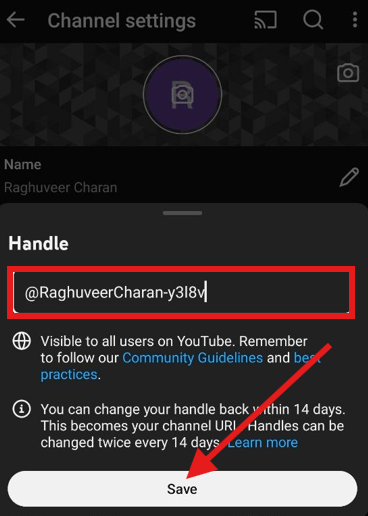
As soon as you complete this process, your new handle will be successfully updated. This is a simple and effective way to update the username of any YouTube channel.
What is a YouTube Username?
A YouTube channel username is a unique ID that is linked to your channel’s URL. When any user searches for your username in a browser or clicks on it, they will be directed straight to your channel’s homepage.
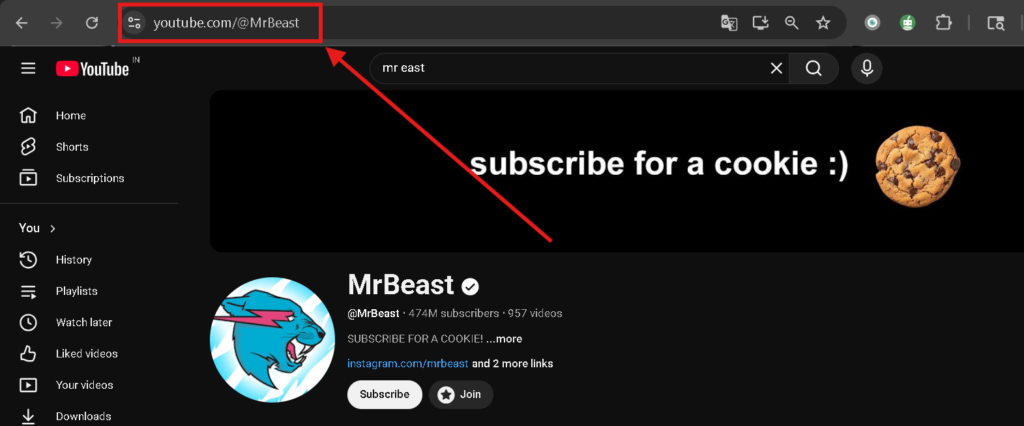
Note: On YouTube, you can change your channel handle twice within a 14-day period. You can create a great username by combining letters and numbers.
Frequently Asked Questions (FAQs)
Q1. Can I change my YouTube handle to any name I want?
Ans: Yes, but it must be unique. If the handle you want is already taken by another creator, you will need to try a different combination of letters or numbers until you find one that is available.
Q2. How many times can I change my YouTube username?
Ans: YouTube allows you to change your channel handle twice within a 14-day window. If you have already changed it twice, you will have to wait for the 14-day period to reset before making another change.
Q3. Will changing my handle change my YouTube Channel name?
Ans: Not necessarily. Your Channel Name (e.g., “Tech Tips”) and your Handle (e.g., “@techtips123”) are two different things. You can change them independently in the Customization settings.
Q4. What happens to my old YouTube URL after I change my handle?
Ans: When you change your handle, your new URL becomes youtube.com/@newhandle. YouTube usually redirects traffic from your previous handle URL to your new one for a limited time to ensure your audience can still find you.
Q5. Why am I unable to see the “Handle” option in my settings?
Ans: Ensure that your YouTube app is updated to the latest version. If you are on a PC, make sure you are logged into the correct Google account associated with your channel and navigating through YouTube Studio.
Q6. Can I use symbols like @ or # in my YouTube username?
Ans: No. Handles can only contain alphanumeric characters (A–Z, a–z, 0–9) and underscores (_), periods (.), or hyphens (-).