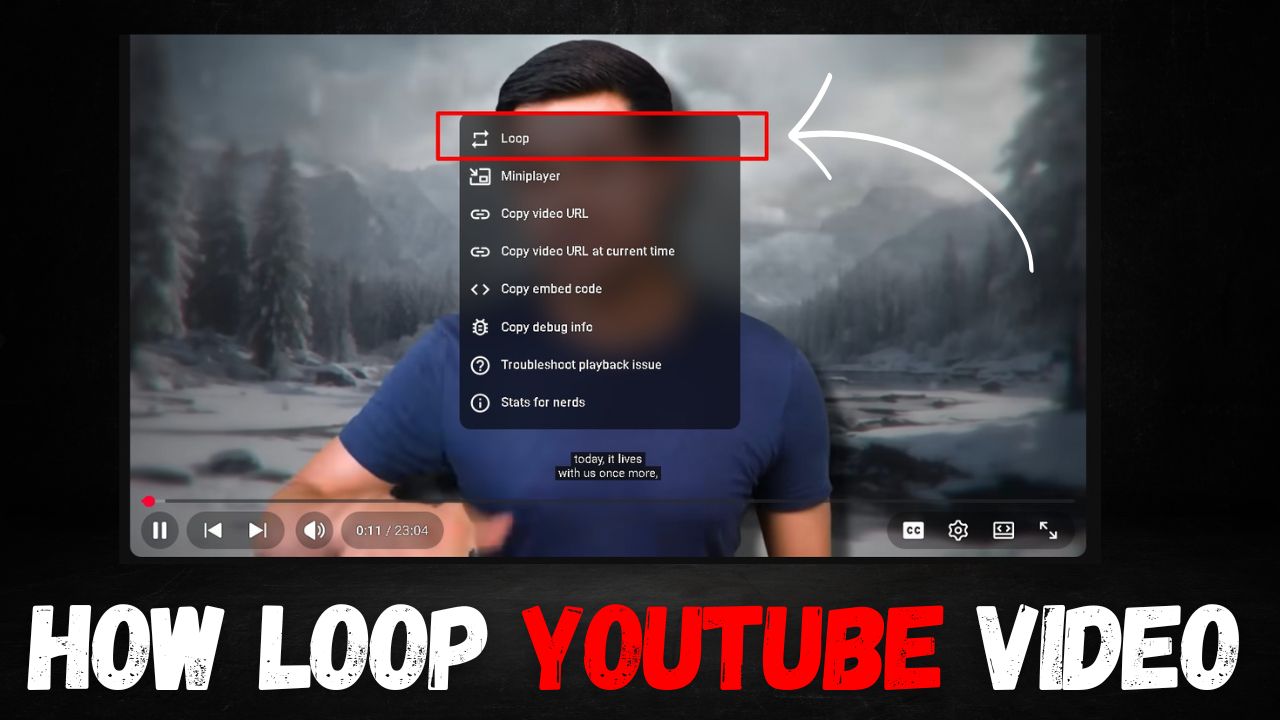
If you want to loop any video on YouTube, this article is going to be incredibly useful for you. We will guide you through the easiest and safest method to loop YouTube videos so that you can repeat your content without relying on any third-party tools.
How to Loop a YouTube Video
Before looping a video, it is essential to understand what looping actually means. Simply put, when you want a specific video to replay automatically over and over again, it is referred to as a loop. If you are a desktop user and want to loop a video on your computer, follow these simple steps:
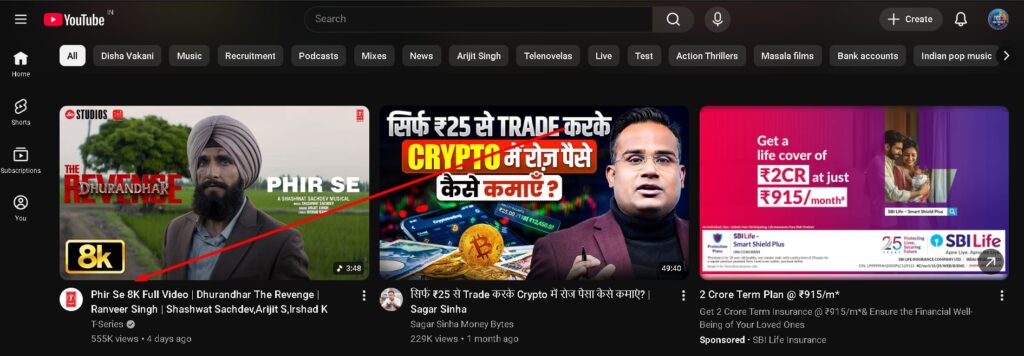
Step 1: Open any web browser on your desktop and navigate to the YouTube website. Next, play the specific video you wish to loop.
Step 2: Once the video opens and starts playing, right-click anywhere on the video player using your mouse. A context menu will appear. From this menu, click on the Loop option.
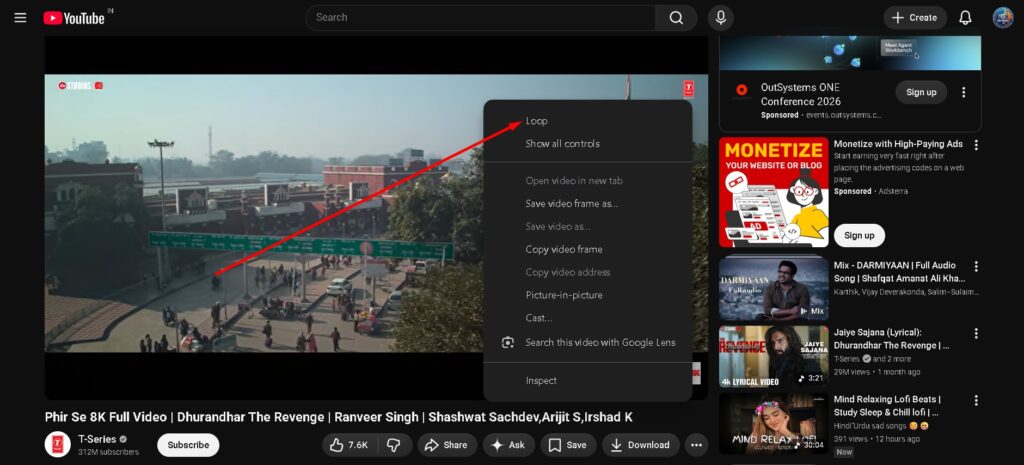
As soon as you complete this process, the loop mode will be activated for that video, and it will continue to replay automatically. Please note that if an advertisement is playing when you open the video, you must skip the ad first. The Loop option will only appear when you right-click on the actual video content.
How to Loop on Android and iPhone
If you are using an Android device or an iPhone, the method to loop videos is slightly different. Mobile users can follow these steps to loop a video:
Step 1: Open the YouTube app on your phone and tap on the video you want to loop.
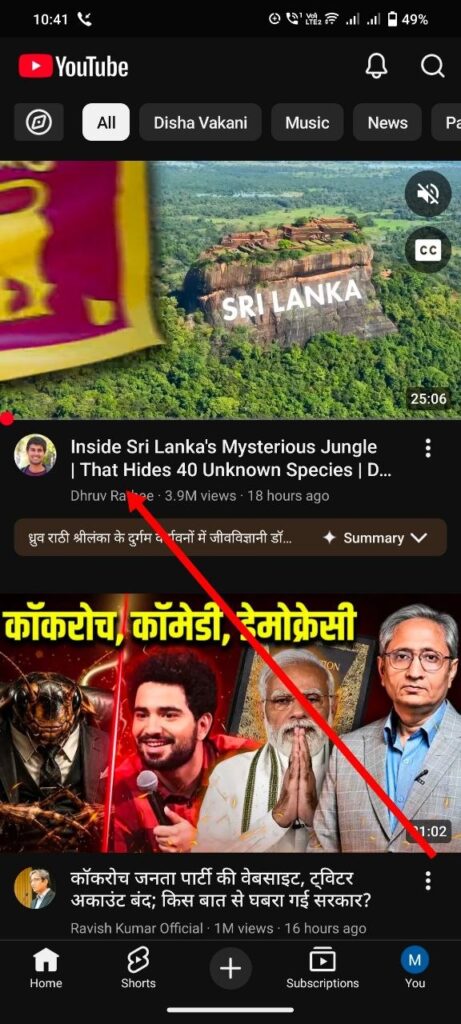
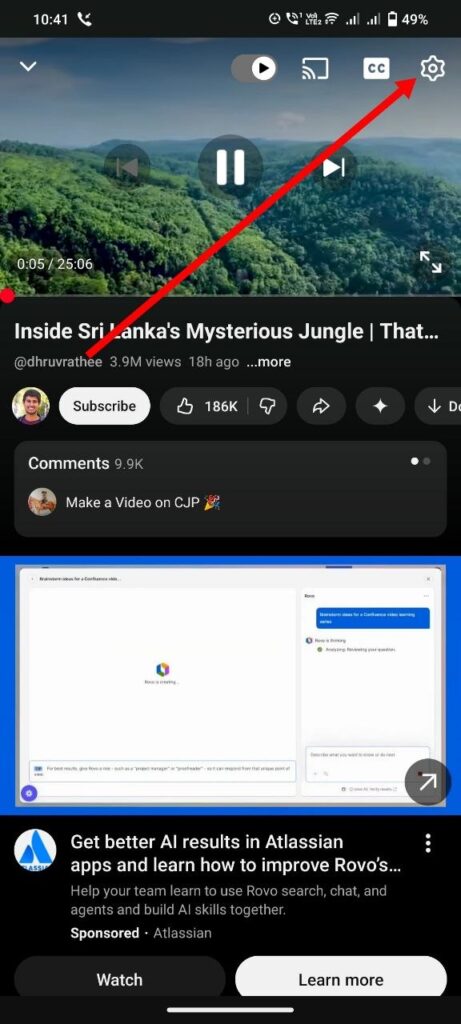
Step 2: While the video is playing, tap the screen to reveal the controls, and then tap the Settings (gear) icon located at the top right corner of the video.
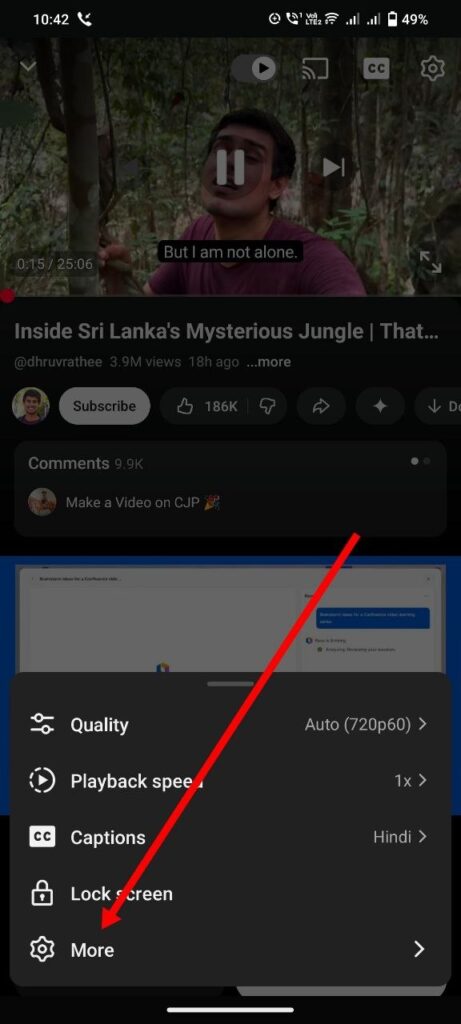
Step 3: A small menu will pop up at the bottom of your screen. From this menu, tap on More.
Step 4: A new menu will open, displaying several options. At the very top of this menu, you will see the Loop video option. Tap on it to turn it on.
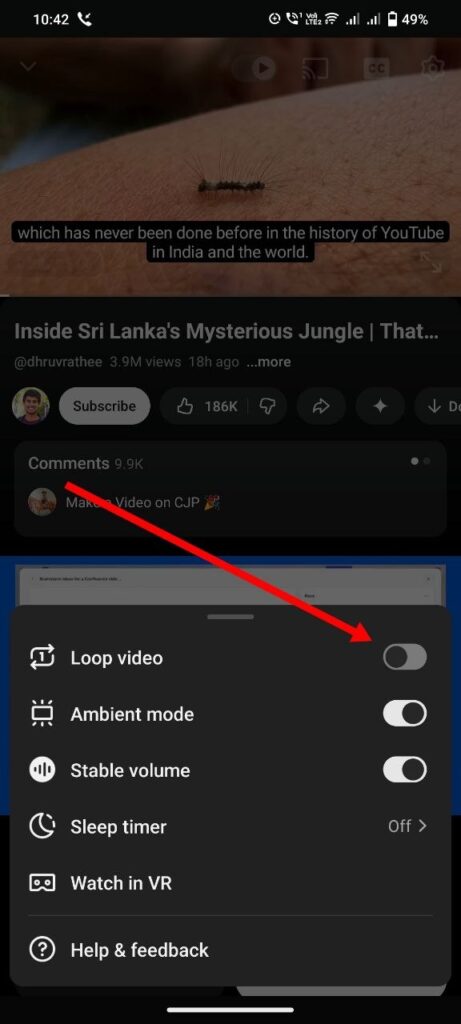
Once you finish these steps, the loop feature will be activated on your YouTube app, and the video will automatically keep playing on your phone until you manually stop or close it.
How to Loop a Playlist
If you want to loop an entire playlist instead of just a single video, you can do so by following the process below. This works seamlessly for both individual preferences and continuous playback:
Step 1: Open the YouTube app or visit the YouTube website, and then navigate to and click on the playlist you want to loop.
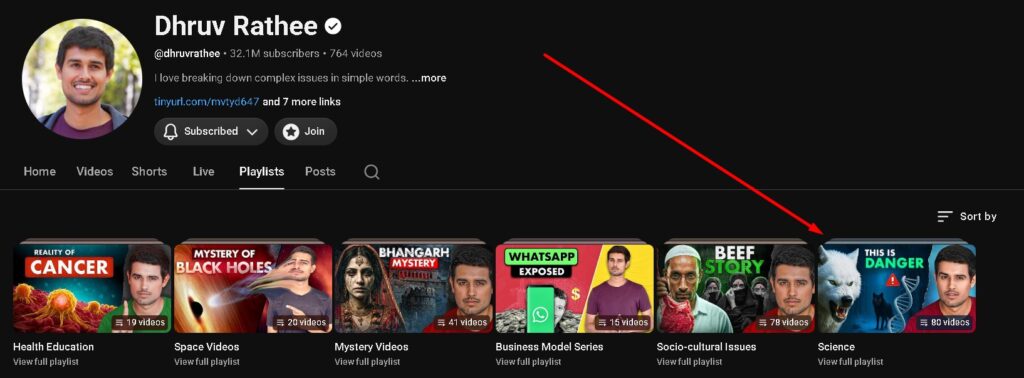
Step 2: Once the playlist opens, look directly below the playlist title or details for the Loop (🔄) icon and click or tap on it.
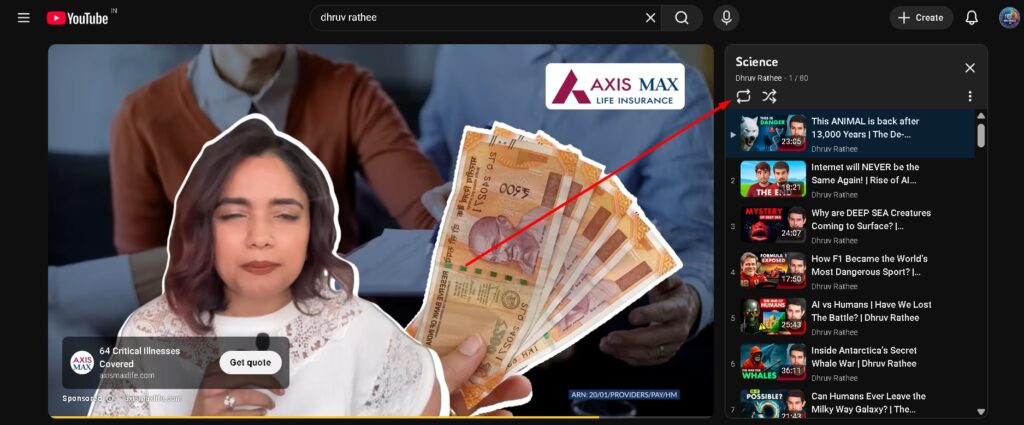
Clicking the loop icon within the playlist settings ensures that the entire sequence of videos will repeat continuously. This is how you can easily loop a full playlist on YouTube.
1. How do I loop a YouTube video without an app? You can easily loop a YouTube video without any third-party apps or extensions. On a desktop browser, simply right-click the video player and select “Loop.” On mobile, you can use the built-in settings menu directly inside the official YouTube app to turn on the loop feature.
2. Why can’t I see the Loop option on YouTube? If you cannot find the Loop option, it is likely because an advertisement is currently playing. YouTube does not allow you to loop ads. Wait for the advertisement to finish or skip it completely, then right-click on a desktop or open the video settings on mobile to see the Loop option.
3. How do you loop a YouTube video on Android or iPhone? To loop a video on mobile, open the YouTube app and play your video. Tap the screen to bring up the overlay, select the Settings (gear) icon at the top, tap “More” from the bottom menu, and then select the “Loop video” option to enable continuous playback.
4. Can you loop an entire YouTube playlist? Yes, you can loop a full playlist instead of just a single video. Navigate to the playlist you want to watch on either the YouTube website or mobile app. Right below the playlist title or details, click or tap the Loop (🔄) icon to make the entire collection of videos repeat automatically.
5. Is it safe to use third-party tools to loop YouTube videos? While third-party tools and websites exist, they are completely unnecessary and may pose security risks. The safest and easiest way to loop a video is by using YouTube’s official built-in features on your desktop browser or mobile application.
6. Does a looped YouTube video stop automatically? Once you activate the loop feature on a single video or an entire playlist, it will continue to replay automatically. The video will keep running on a continuous loop until you manually pause it, turn off the loop setting, or close the browser tab or app.