
If you enjoy watching videos on YouTube or if you want to upload videos on YouTube, this article explains the complete process of installing the YouTube application on any device. By following these steps, you can easily install YouTube on your phone or PC.
YouTube is a platform that you can access through both a browser and an application. Both options have their own advantages and disadvantages. However, if you want smoother and faster performance, installing the YouTube application can be more beneficial.
How to Install YouTube on Android Phones
If you are an Android user, you will be glad to know that the YouTube application usually comes pre-installed on Android phones and can be used directly. However, if the YouTube application is not installed on your Android device for any reason, you can install it using the following method.
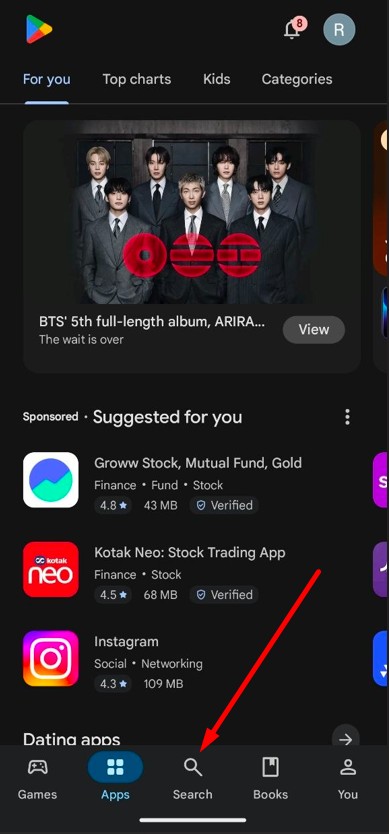
Step 1. First, open the Google Play Store application on your phone. After that, click on the search icon. Now you will see the Play Store search bar where you need to type YouTube and search.
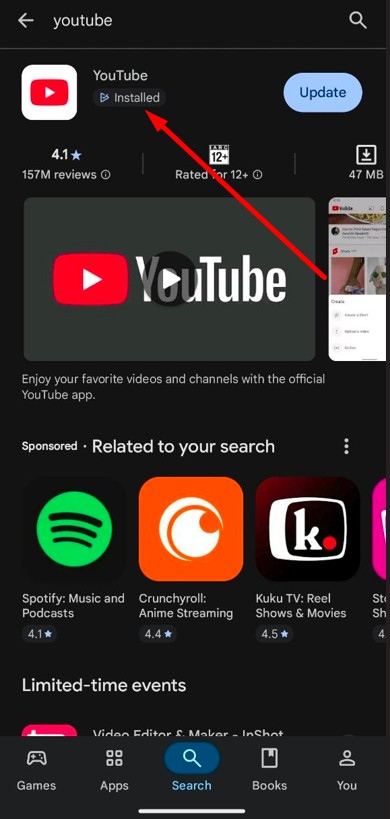
Step 2. You will now see a list of YouTube and related applications. From this list, click on the official YouTube application.
Step 3. After opening the application page, you will see various details about the YouTube app along with the Install/Update option. Click on the install option.
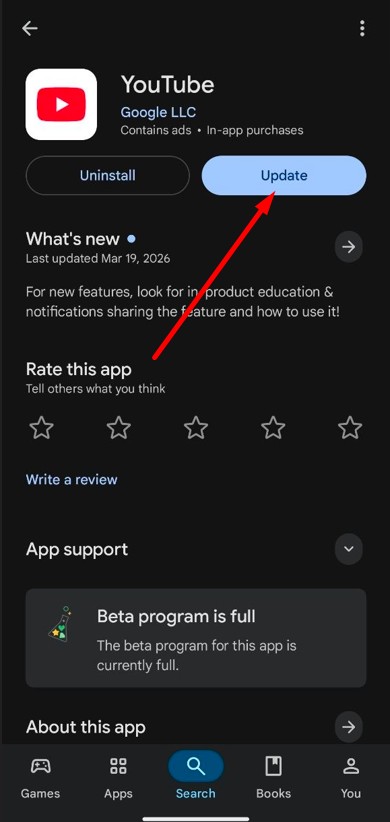
Once you complete these steps, the YouTube application will start installing on your phone. Keep in mind that the installation may take a little time, so wait until the application is fully installed on your device.
Note – If you use an Android tablet, you can install applications on it in the same way as on an Android mobile phone.
How to Install YouTube on a Laptop or Desktop
If you are a laptop or desktop user and want to install YouTube on your laptop, you can do it by creating a shortcut using the taskbar. Follow the method below to set it up.
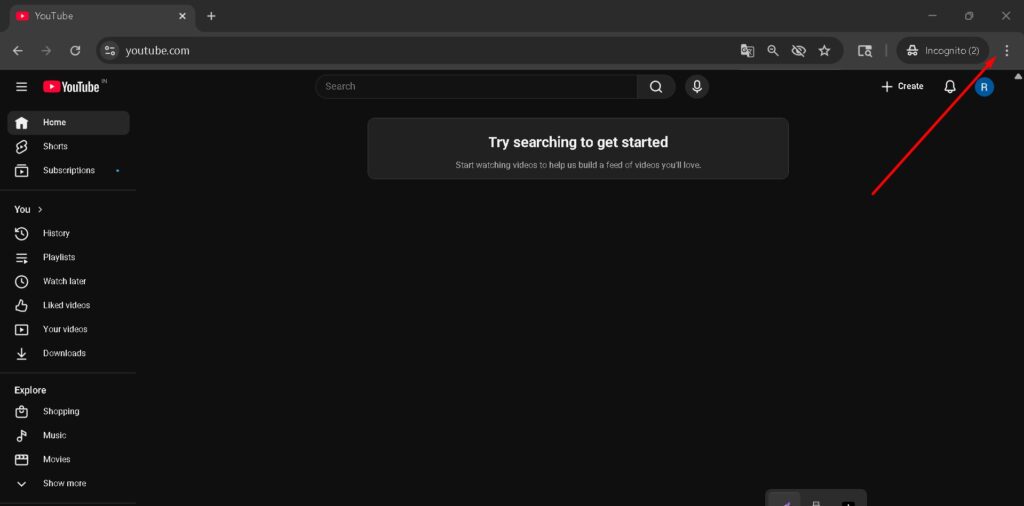
Step 1. First, open Google Chrome on your laptop or PC. Then visit the website https://www.youtube.com. After opening the website, click on the three dots icon visible at the top of Google Chrome.
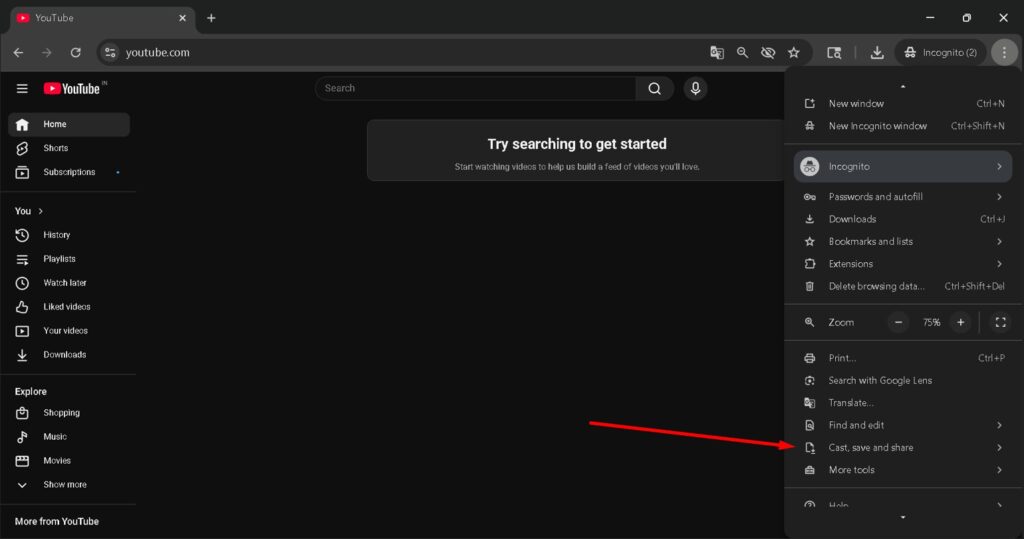
Step 2. You will now see a list of different options. Scroll down and click on Cast, save and share.
Step 3. A new menu will open where you will see the option Install YouTube or Create shortcut under the save section. Click on this option.
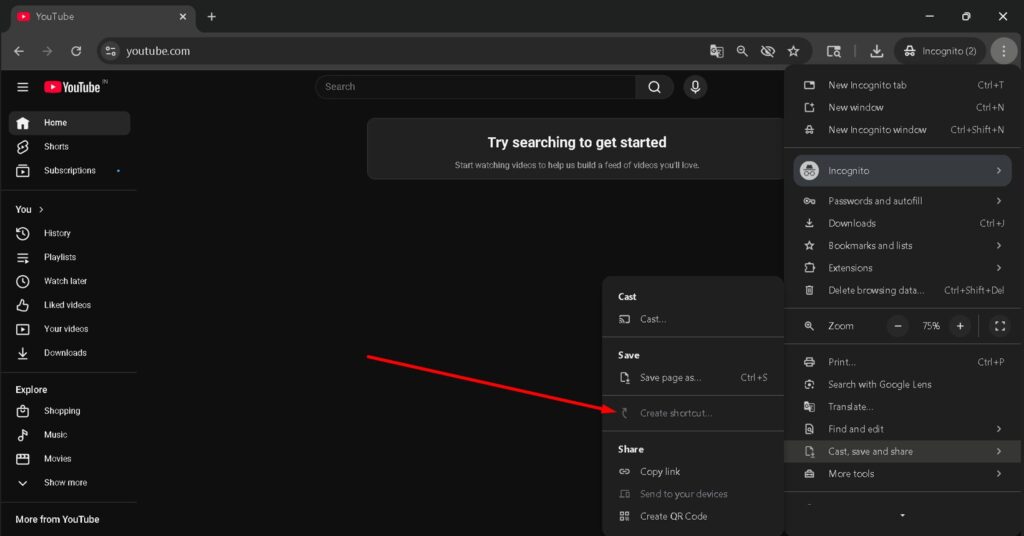
After completing this process, the YouTube shortcut file will be saved in your download folder. You can then drag the shortcut file to the bottom taskbar of your laptop. Once this is done, you will be able to access YouTube with a single click.
How to Install YouTube on iPhone or iPad
If you are an iPhone or iPad user, you can install the YouTube application using the App Store just like on Android devices. Follow the process below.
Step 1. First, open the App Store on your phone and click on the search icon.
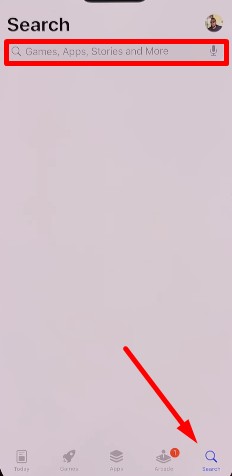
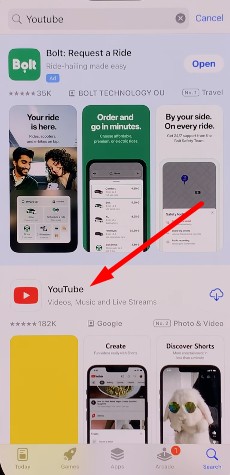
Step 2. Search for YouTube. After that, you will see the official YouTube application. Click on it.
Step 3. When you open the YouTube application page, you will see the option Get or Install. Click on that option.
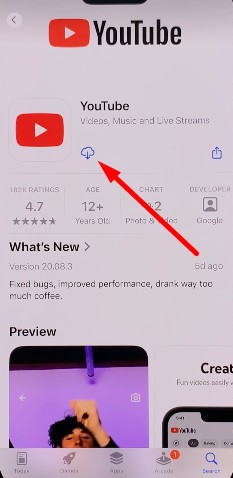
After completing these steps, the YouTube application will start installing on your iPhone or iPad. Once the installation is finished, you can begin using the application.
Note – If you are not logged in to the App Store with your Apple ID, you must sign in using your Apple ID and password before installing YouTube.
How to Install YouTube on Smart TVs
If you use a smart TV, you can easily install the YouTube application using the App Store available on your TV. Follow the process below.
Step 1. First, open the App Store on your smart TV and click on the search option.
Step 2. Type YouTube in the search bar and search. Then click on the official YouTube application.
Step 3. Finally, you will see the option to install YouTube. Click on the Install button.
After completing these steps, the YouTube application will be successfully installed on your smart TV. You can then start using YouTube directly on your television.
Note – After installing YouTube on a smart TV, open the application and sign in using your Google account so that you can use all the features available on YouTube.
Important Precautions Before Installing YouTube
If you are installing the YouTube application on your phone, laptop, or PC, you should keep a few important things in mind to avoid any problems later.
- Your device must be connected to the internet to install YouTube.
- Your device should have enough storage space available.
- Install the YouTube application only from trusted sources.
- Always install the official version of YouTube and avoid downloading unsafe APK files.
- After installing YouTube, update the application regularly to keep it working properly.
Frequently Asked Questions
Can YouTube be installed on any device?
Yes, YouTube can be installed on smartphones, tablets, smart TVs, laptops, and desktop computers depending on the available app store or browser.
Is YouTube already installed on Android phones?
In most Android phones, YouTube comes pre-installed. If it is missing, you can install it from the Google Play Store.
Do I need a Google account to use YouTube on a smart TV?
You can watch videos without logging in, but signing in with a Google account allows you to access all YouTube features.
Can I install YouTube on an iPhone?
Yes, iPhone and iPad users can install YouTube easily through the App Store.
Why is internet required to install YouTube?
An internet connection is necessary because the application must be downloaded from the Play Store or App Store before it can be installed.